

How to set up ALPR in Getac Enterprise
Last updated: May 06, 2026
485
views

Overview
ALPR Lite enables new or existing Getac In-Car Video customers to use the NF-42 for capturing license plates and evidentiary videos. This article details the setup process within Getac Enterprise.
Prerequisites
- NF-42
- ALPR License enabled on Station (refer to https://help.getac.com/kb/article/206-evm3-licensing/ for more details).
Step-by-Step Instructions
Set up camera configuration
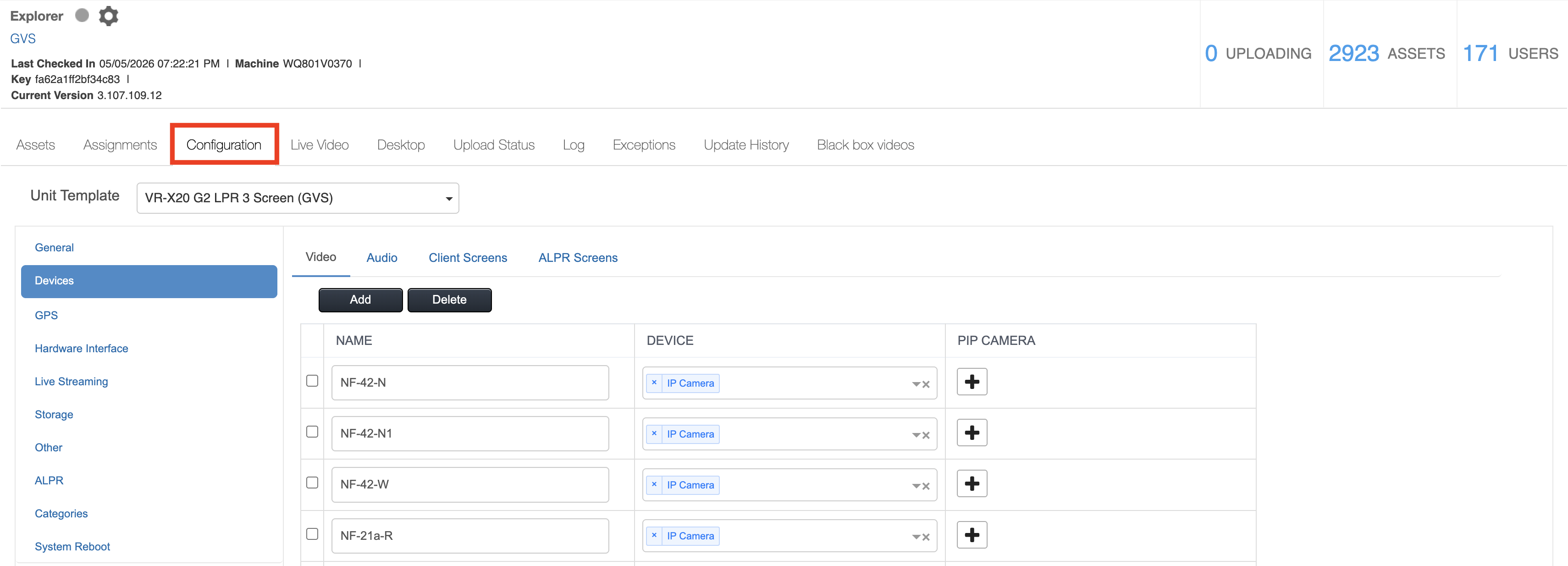
- Click Configuration.
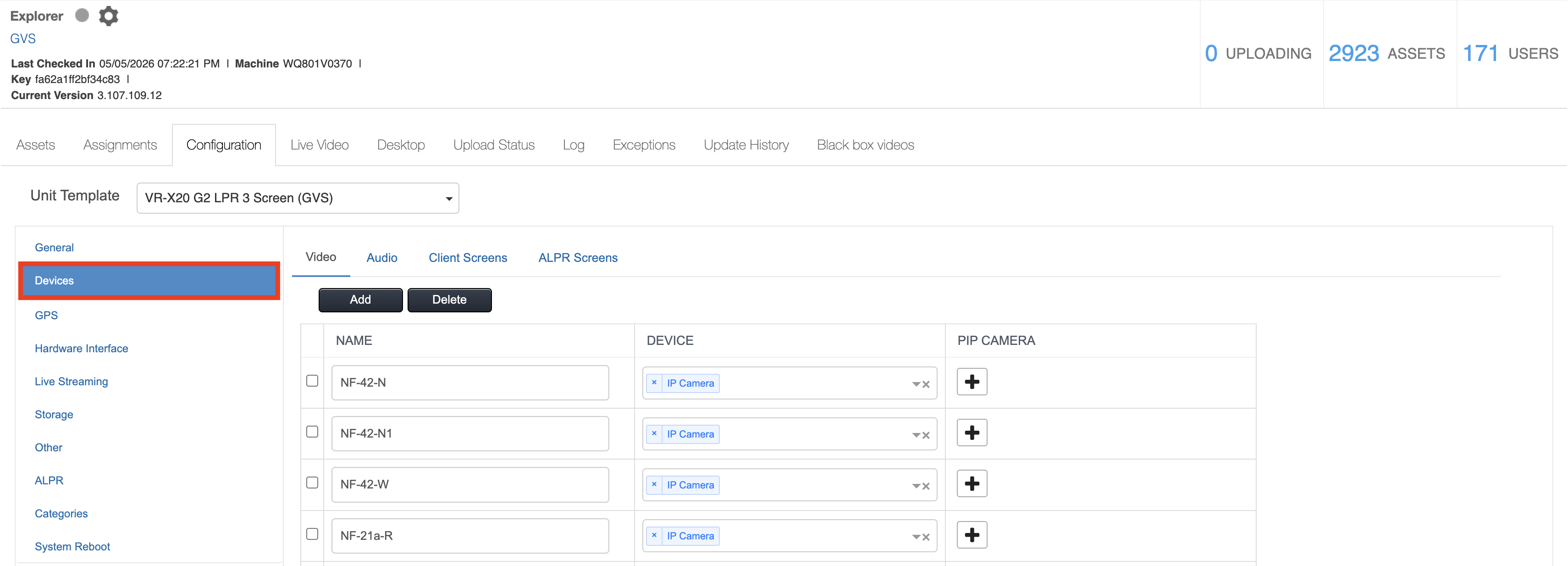
- Click Devices.
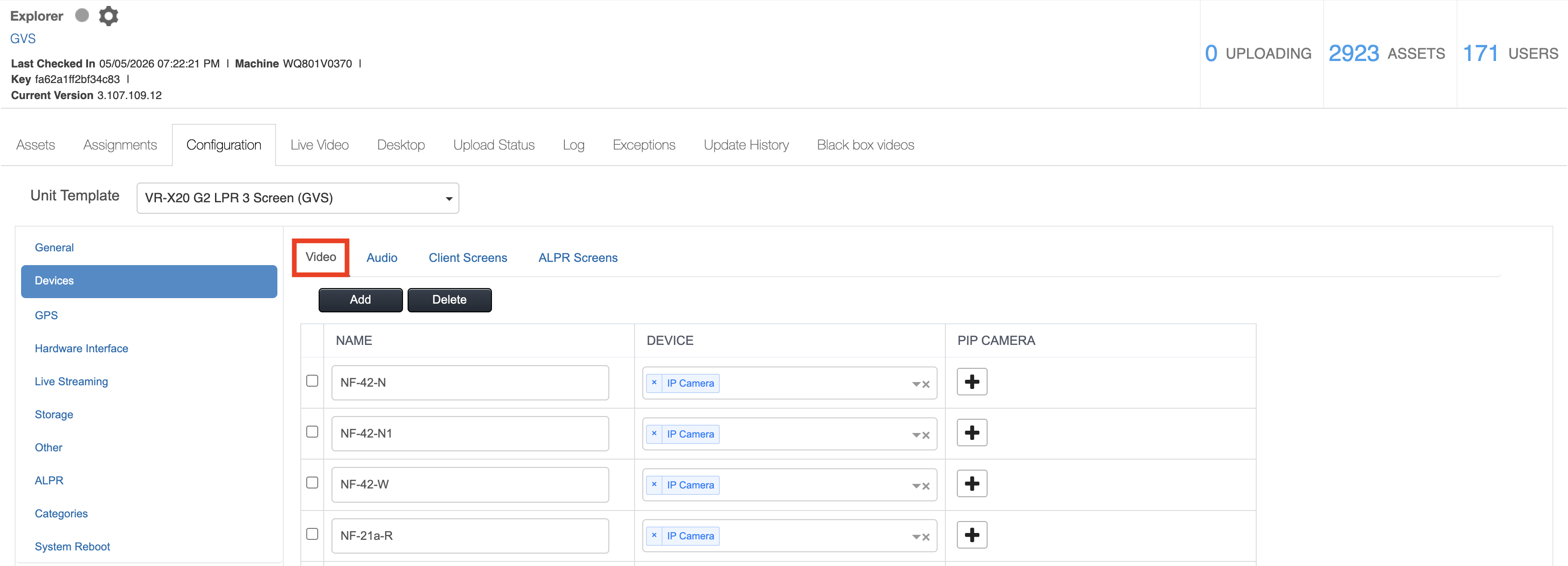
- Click Video.
- Click Add then type a Name and choose Device as IP Camera.
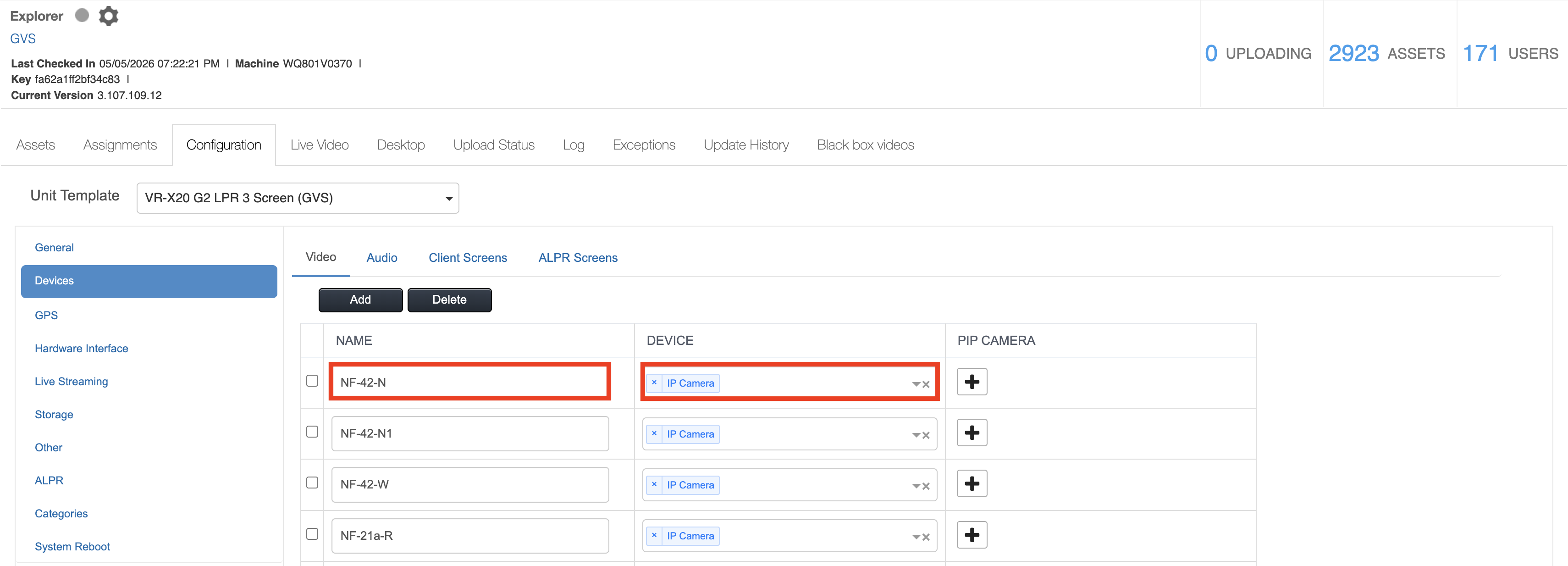
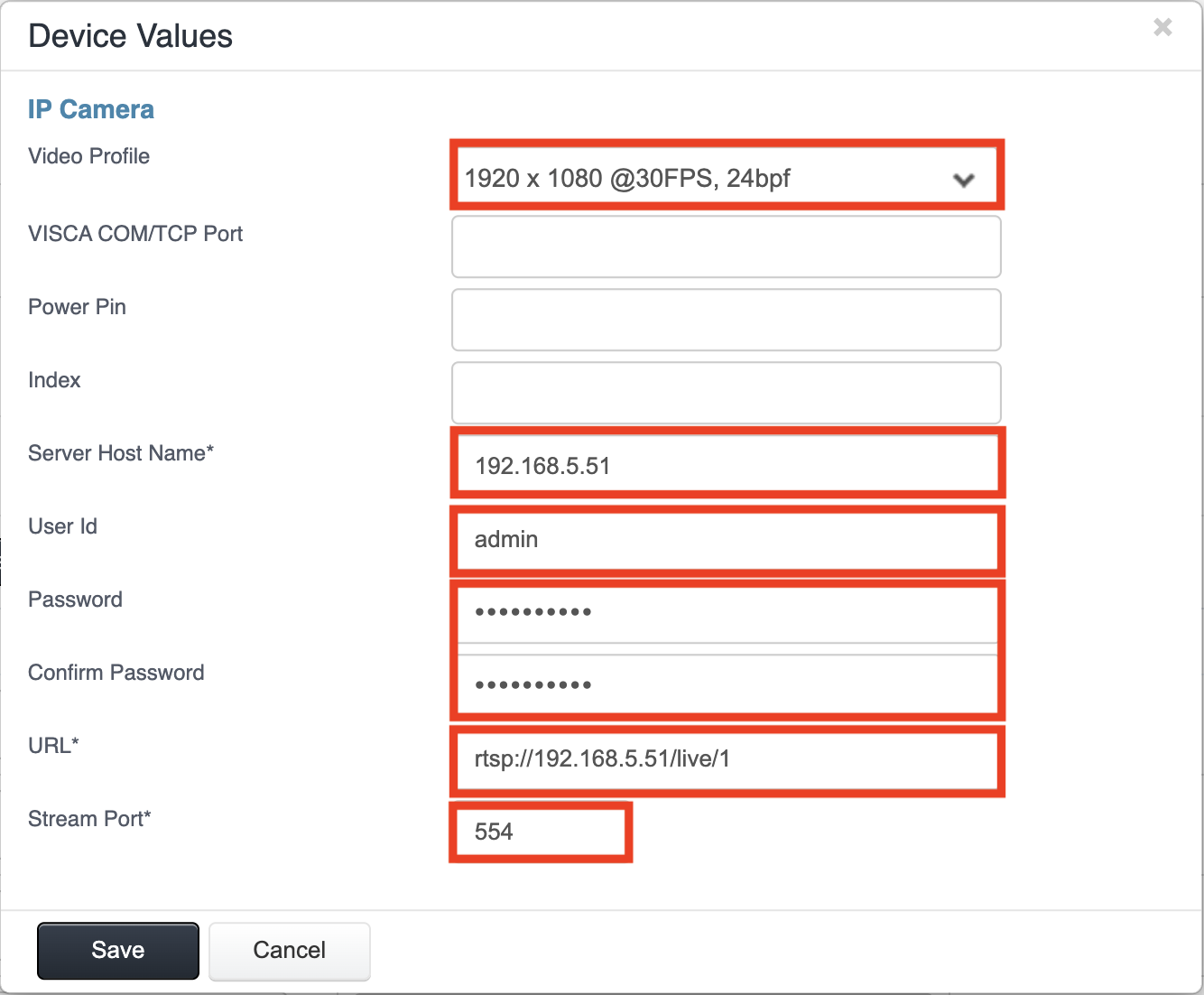
- Click on IP Camera, then fill in the following information:
- Video Profile: 1920 x 1080 @30FPS, 24bpf
- Host Name: 192.168.5.51
- User ID: admin
- Password: password
- URL: rtsp://192.168.5.51/live/1
- Stream Port: 554
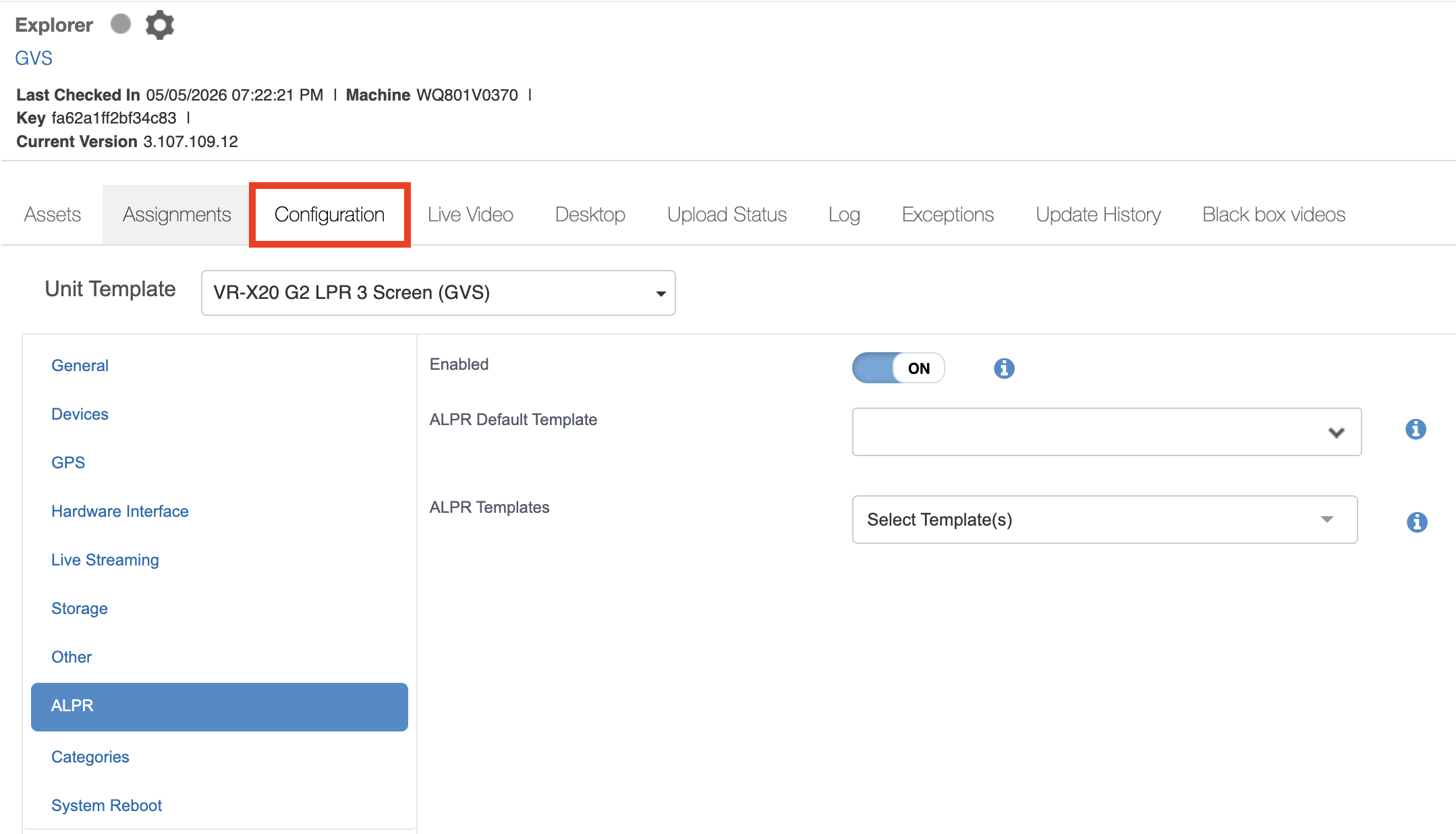
Enable ALPR- Click Configuration.
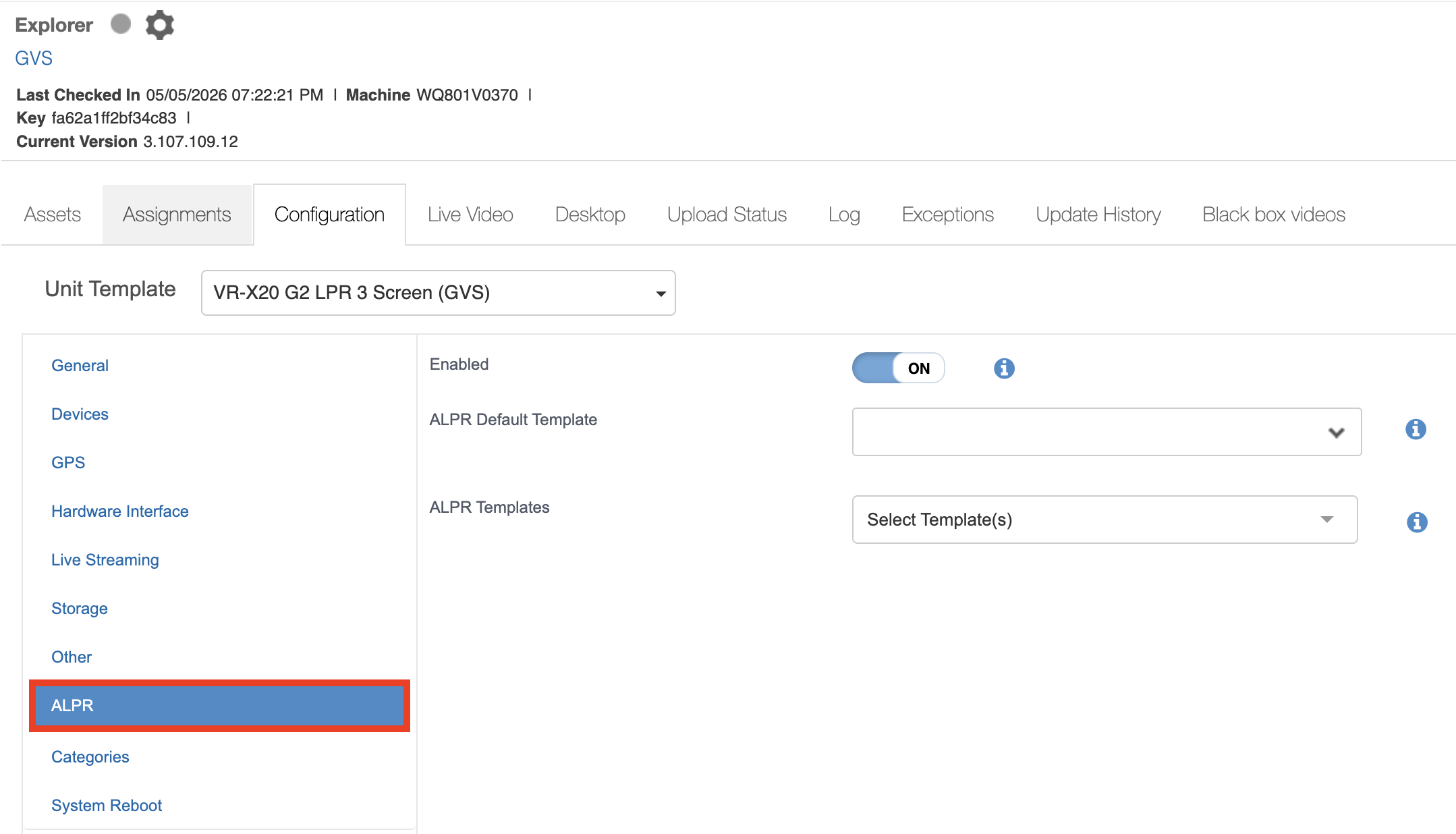
- Click ALPR.
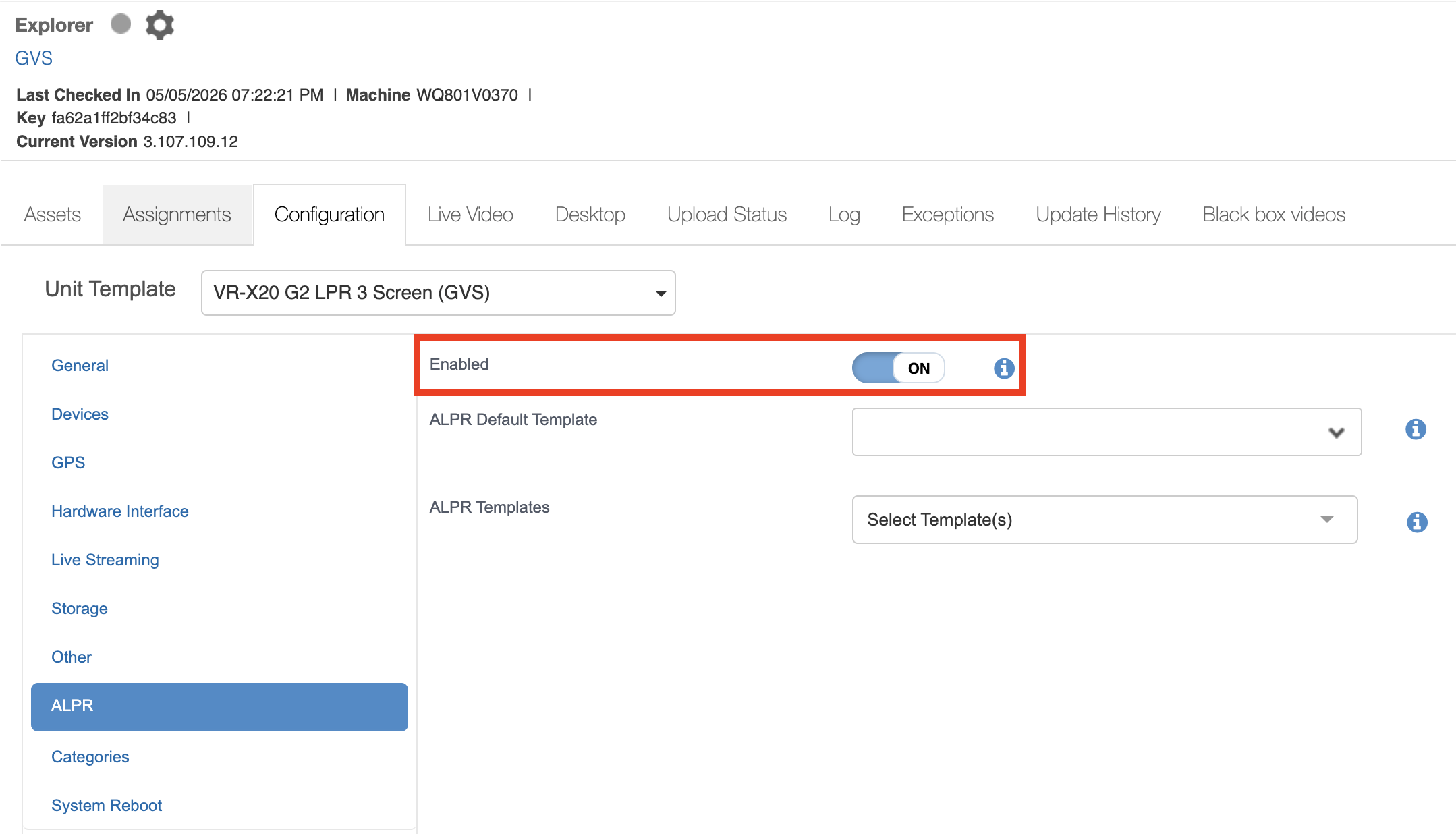
- Set to Enabled.
- Click Configuration.
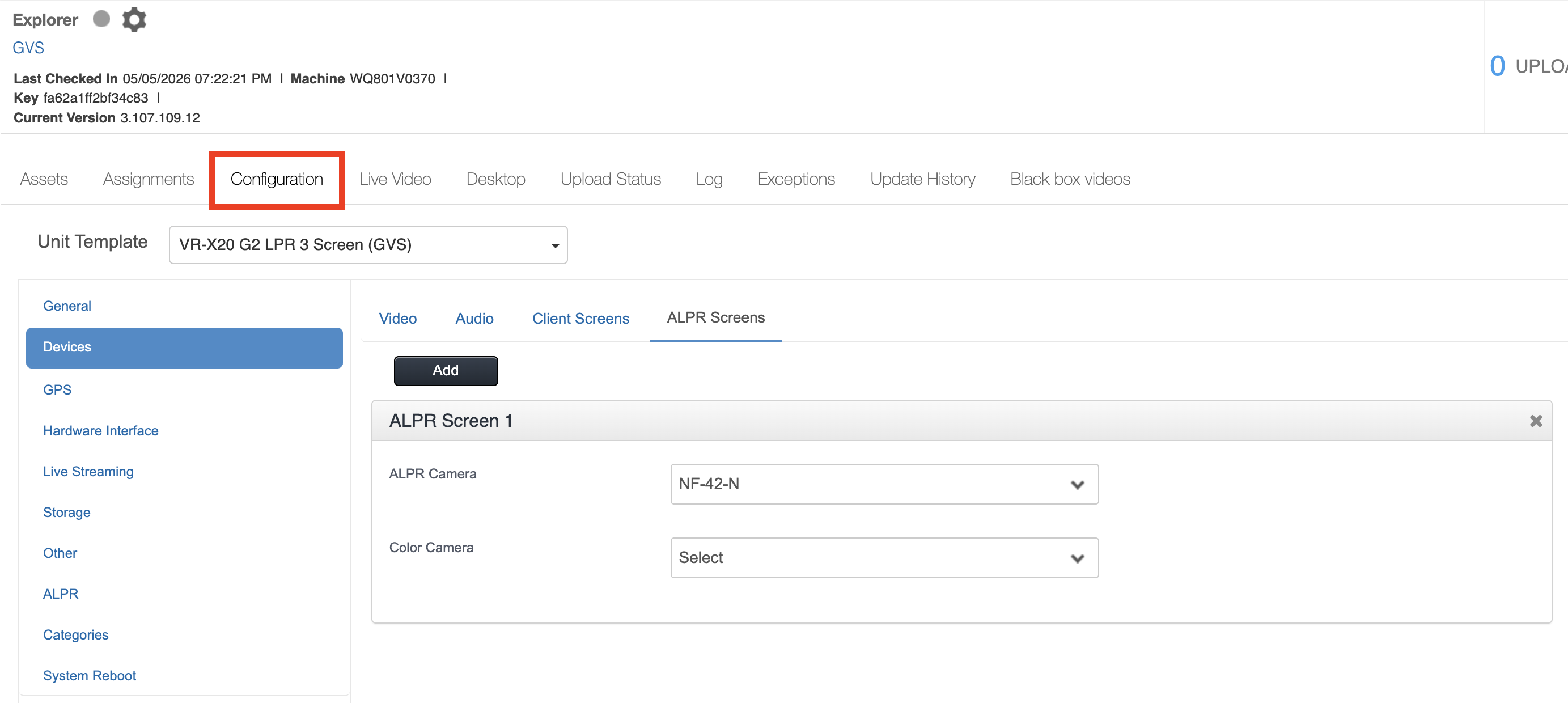
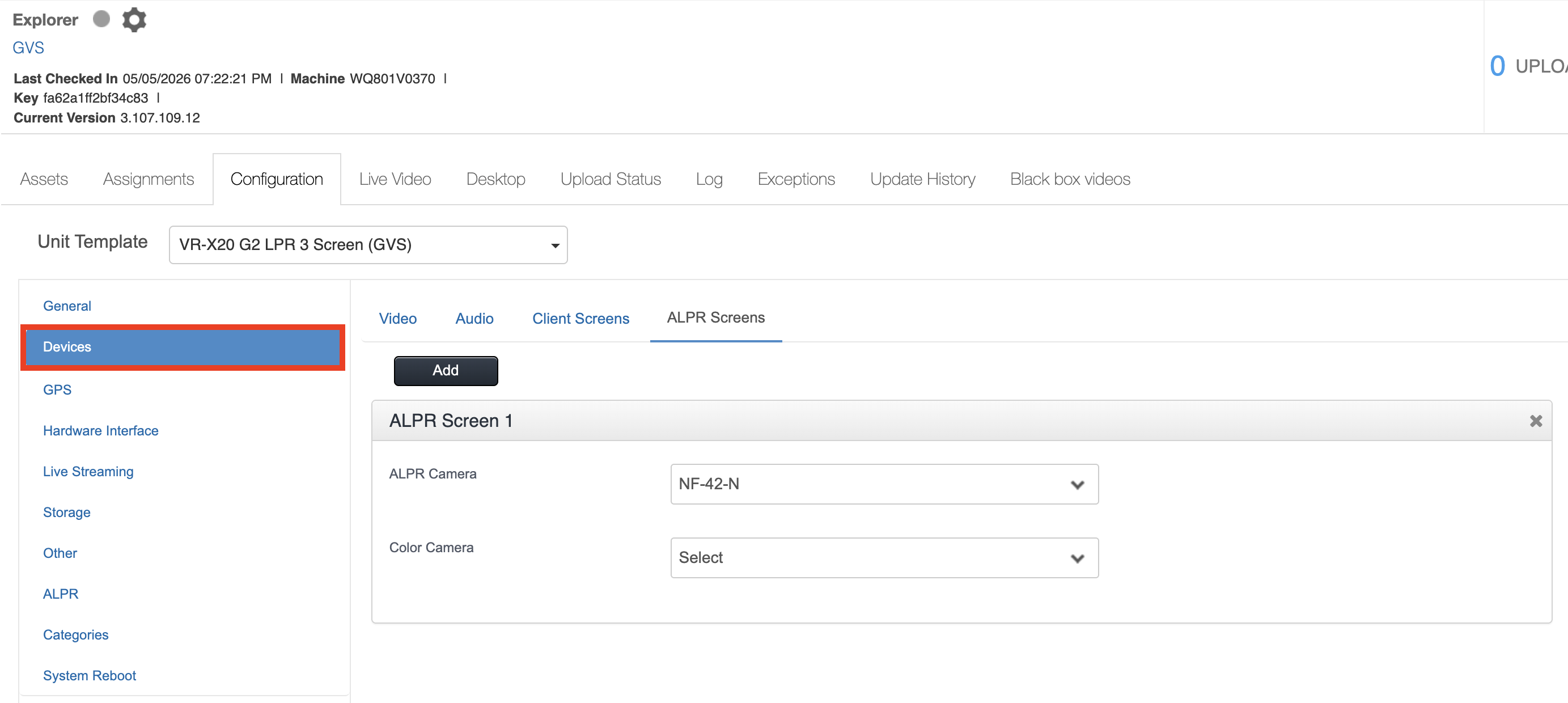
- Click Devices.
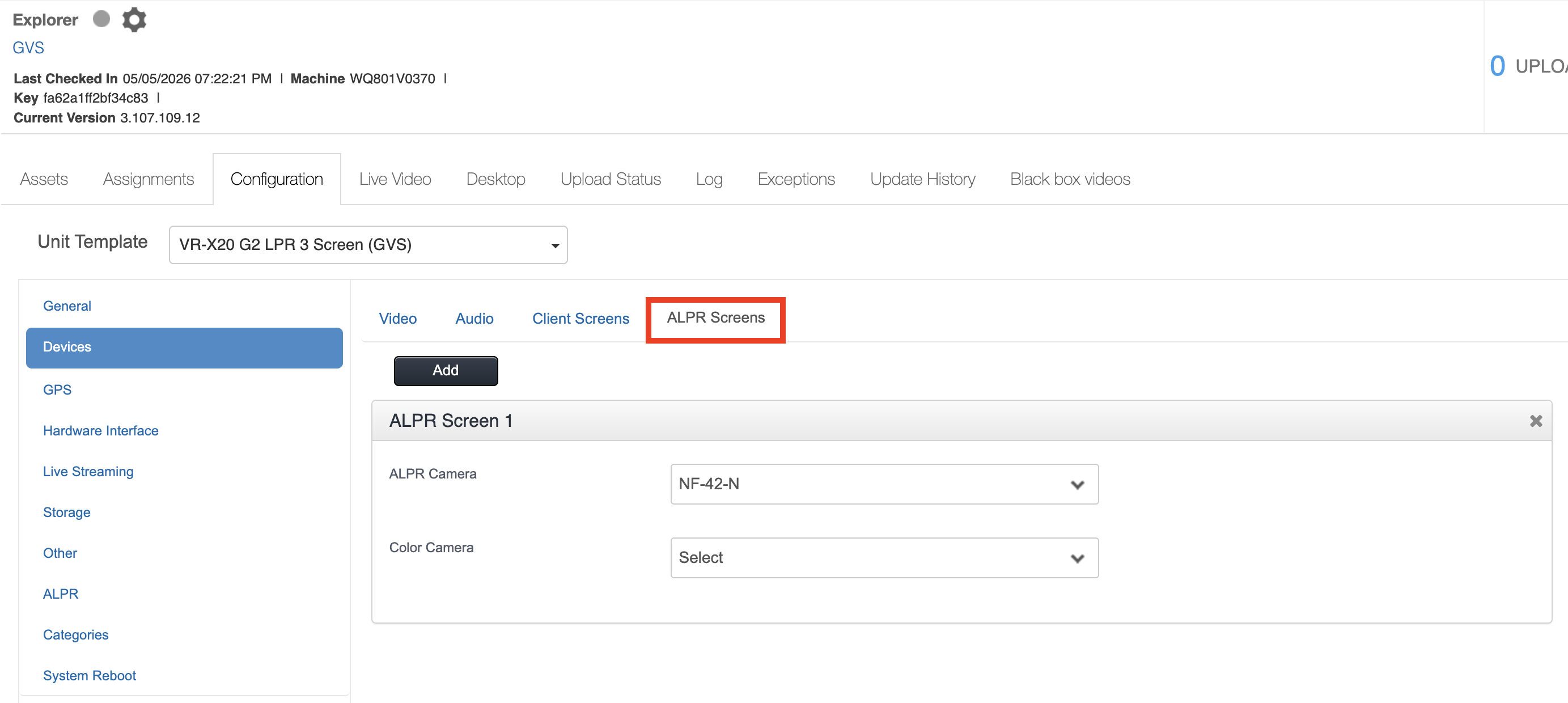
- Click ALPR Screens.
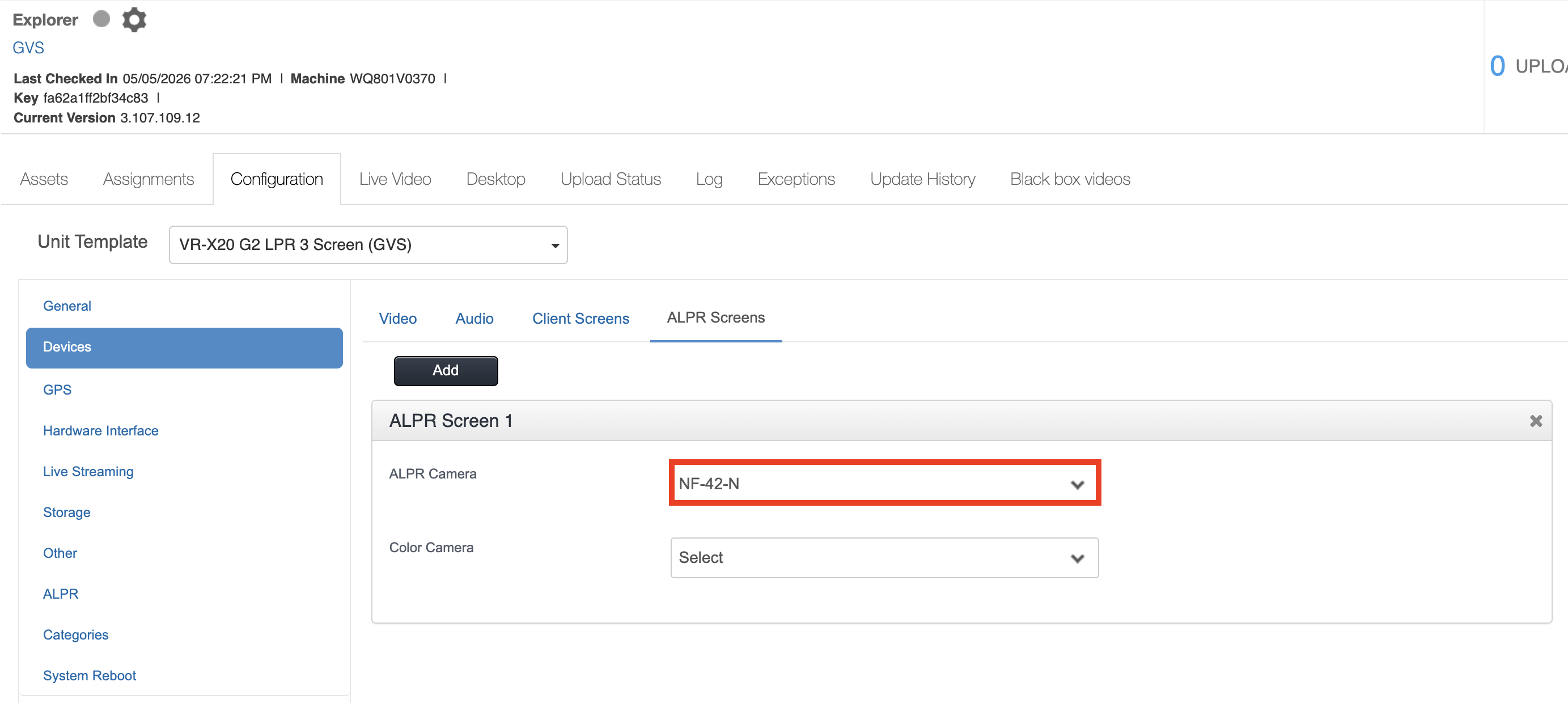
- Select ALPR Camera from the dropdown list.
- Click Configuration.
Configure Retention Policy
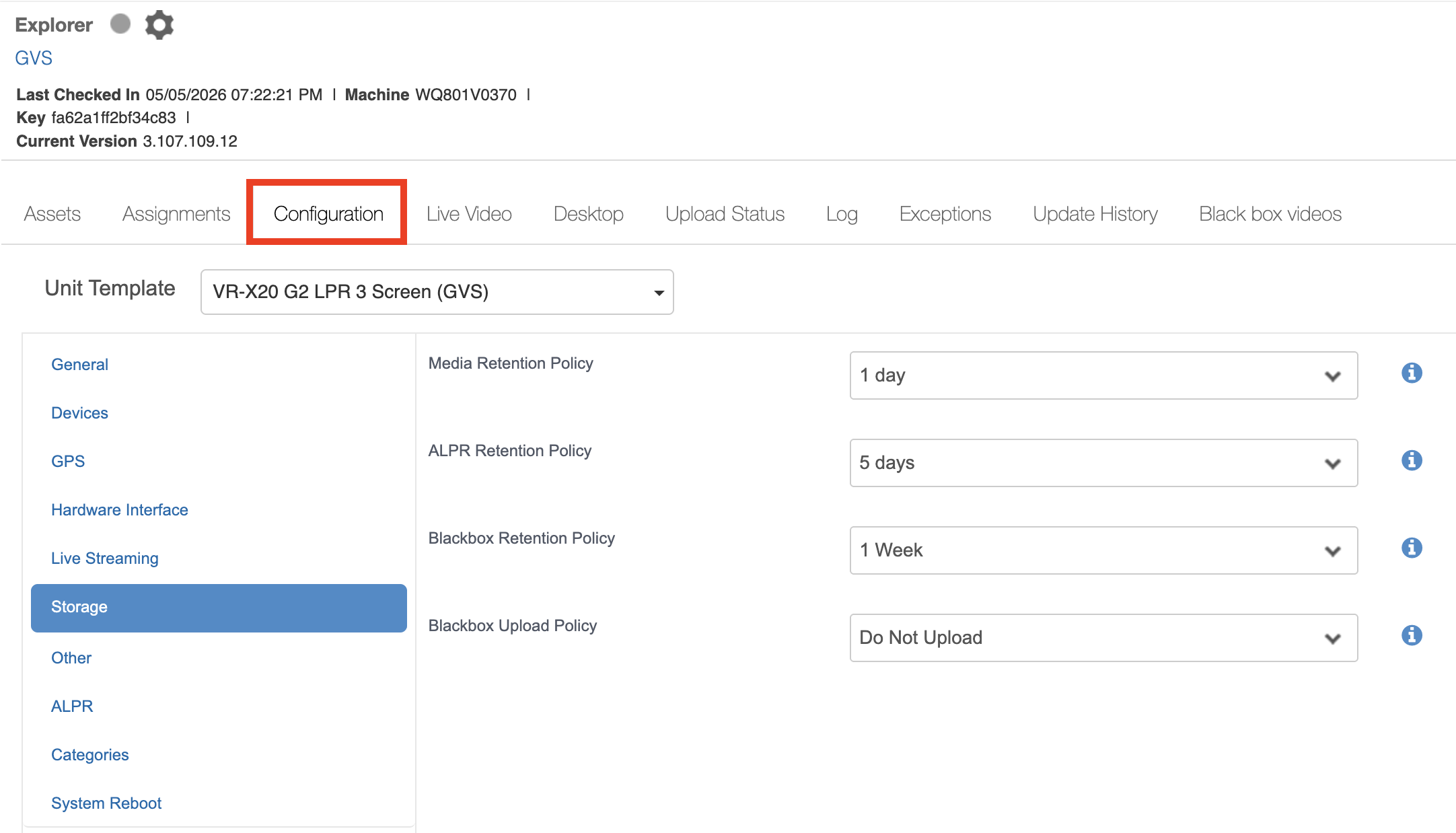
- Click Configuration.
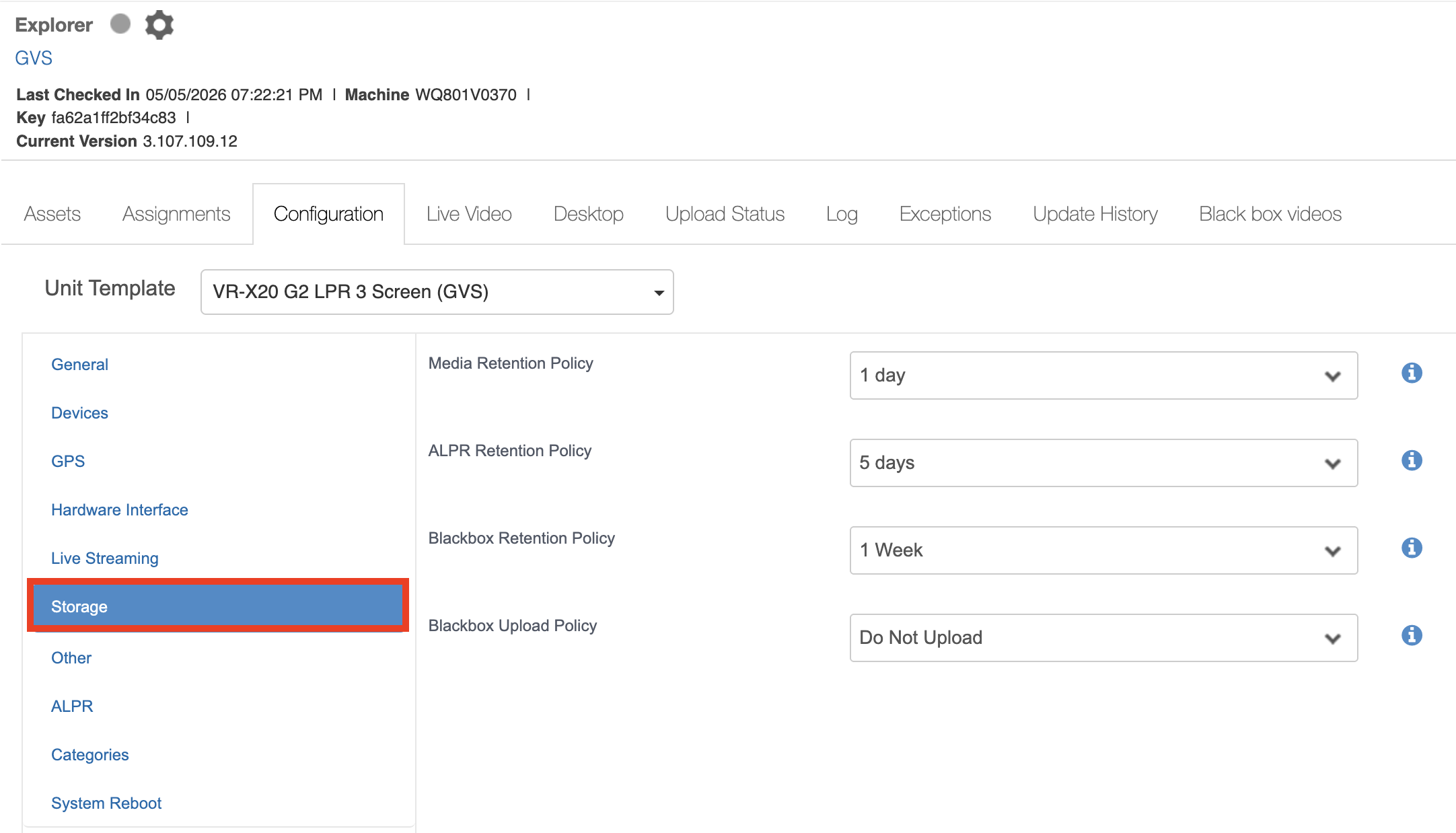
- Click Storage.
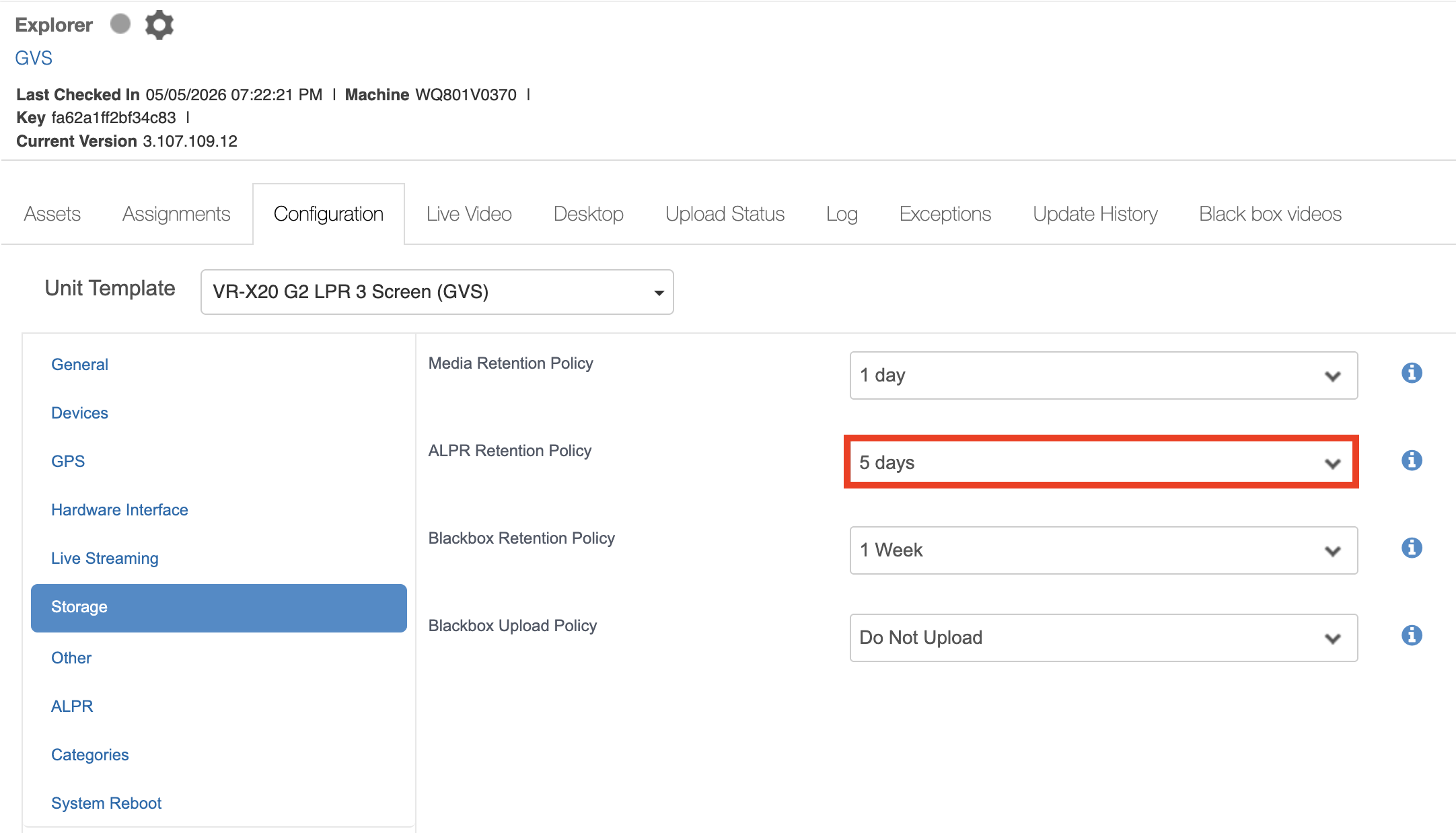
- Select ALPR Retention Policy from the dropdown list.
Expected Outcome
ALPR Lite has been configured within Getac Enterprise, with camera settings defined, ALPR enabled, and the ALPR retention policy selected.
Notes/Important Information
Info: The Retention Policy duration can be configured in Setup > Policies > Retention Policy. Refer to article https://help.getac.com/kb/article/219-evm3-retention-policy/ for more details.
Info: ALPR Captures and ALPR Notifications retention settings can also be configured in the Stations section. Refer to article https://help.getac.com/kb/article/188-evm3-add-station/ for more details.

