

Add Station

Last updated: May 06, 2026
1671
views

Info:
This article showcases features that are typically only made available to Administrator roles. However, since Getac Enterprise is highly configurable, the ability to complete tasks described in this article may be different for each User, depending on policy. Please contact an administrator with all access questions and concerns.
This article showcases features that are typically only made available to Administrator roles. However, since Getac Enterprise is highly configurable, the ability to complete tasks described in this article may be different for each User, depending on policy. Please contact an administrator with all access questions and concerns.
Overview
To add a Station, perform the following steps:
- Navigate to the Main Stations Page.
- Click on the Page icon.
- Add details to the following sections:
- General.
- Retention/Upload Policies.
- Other Settings.
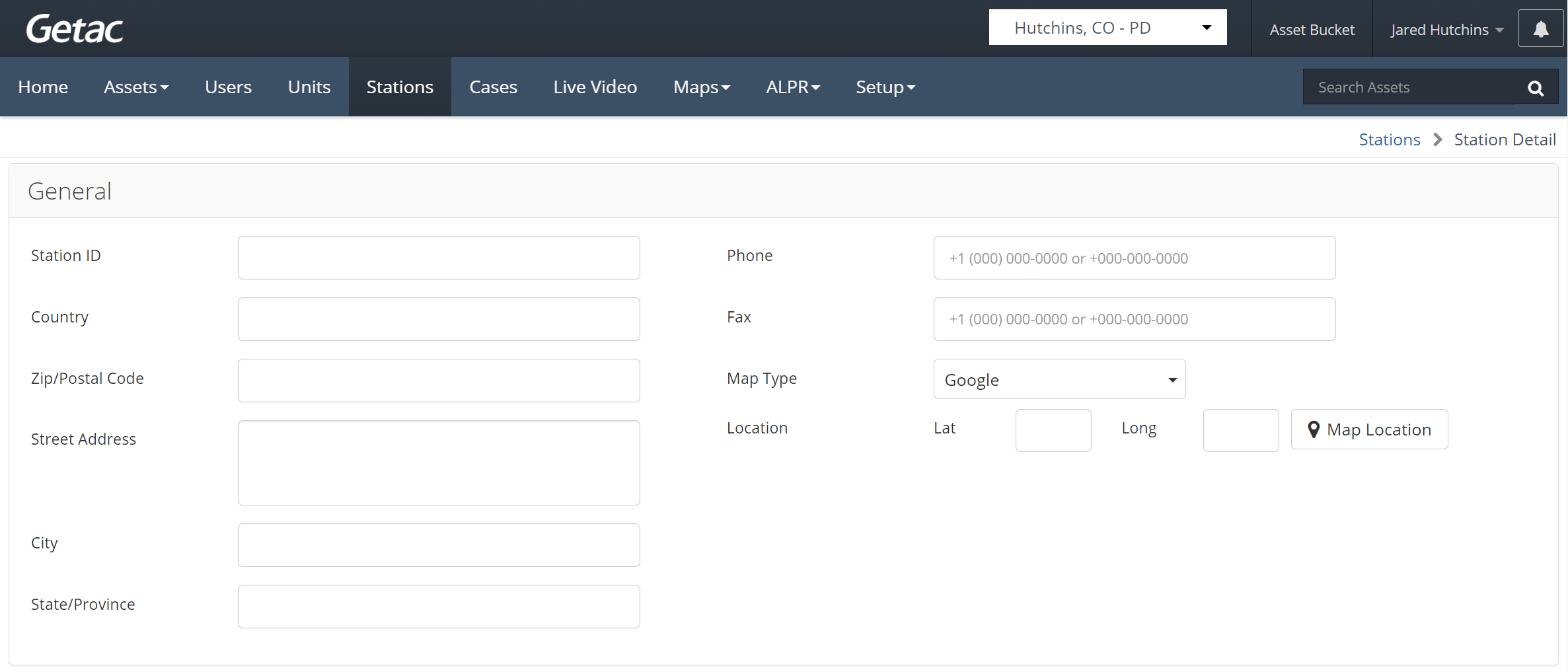
General
- Station ID* - Station Name.
- Country* - Where Station is located.
- Zip/Postal Code*.
- Street Address.
- City.
- State/Province*.
- Phone.
- Fax.
- Map Type - Google or Bing (Google is recommended).
- Location* - Latitude and Longitude, or click on Map Location to manually drop a pin.
- Station Group - Informative only.
Info: Denotes a required field.
See the image below for an example:
Retention/Upload Policies
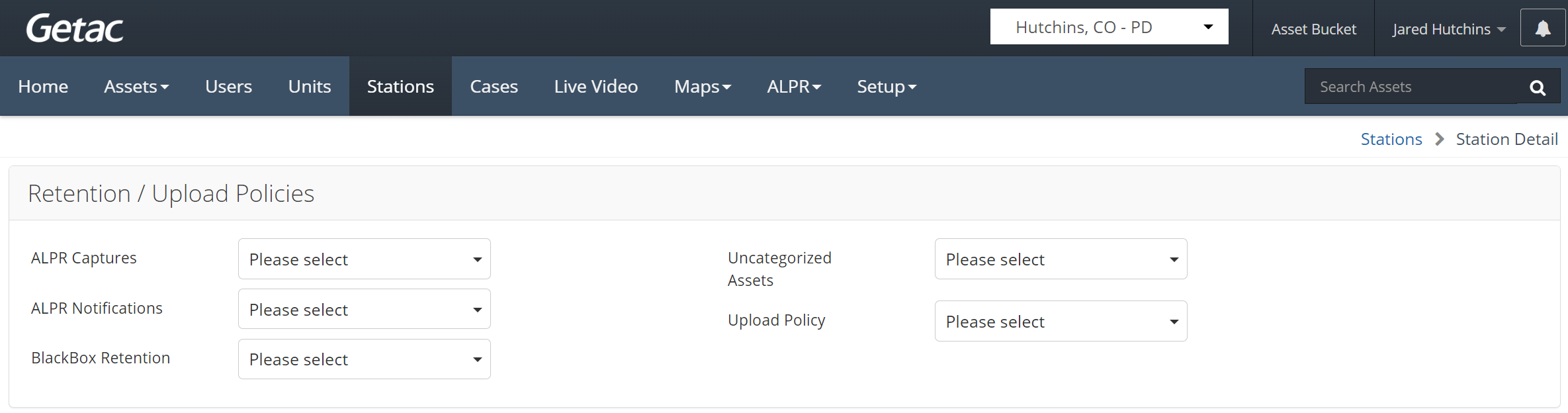
- ALPR Captures - Set policy for plates captured.
- ALPR Notifications -
- BlackBox Retention - Set retention policy for recordings.
- Uncategorized Assets - Set minimum retention period.
- Upload Policy - Set Upload Policy.
See the image below for an example:
Other Settings
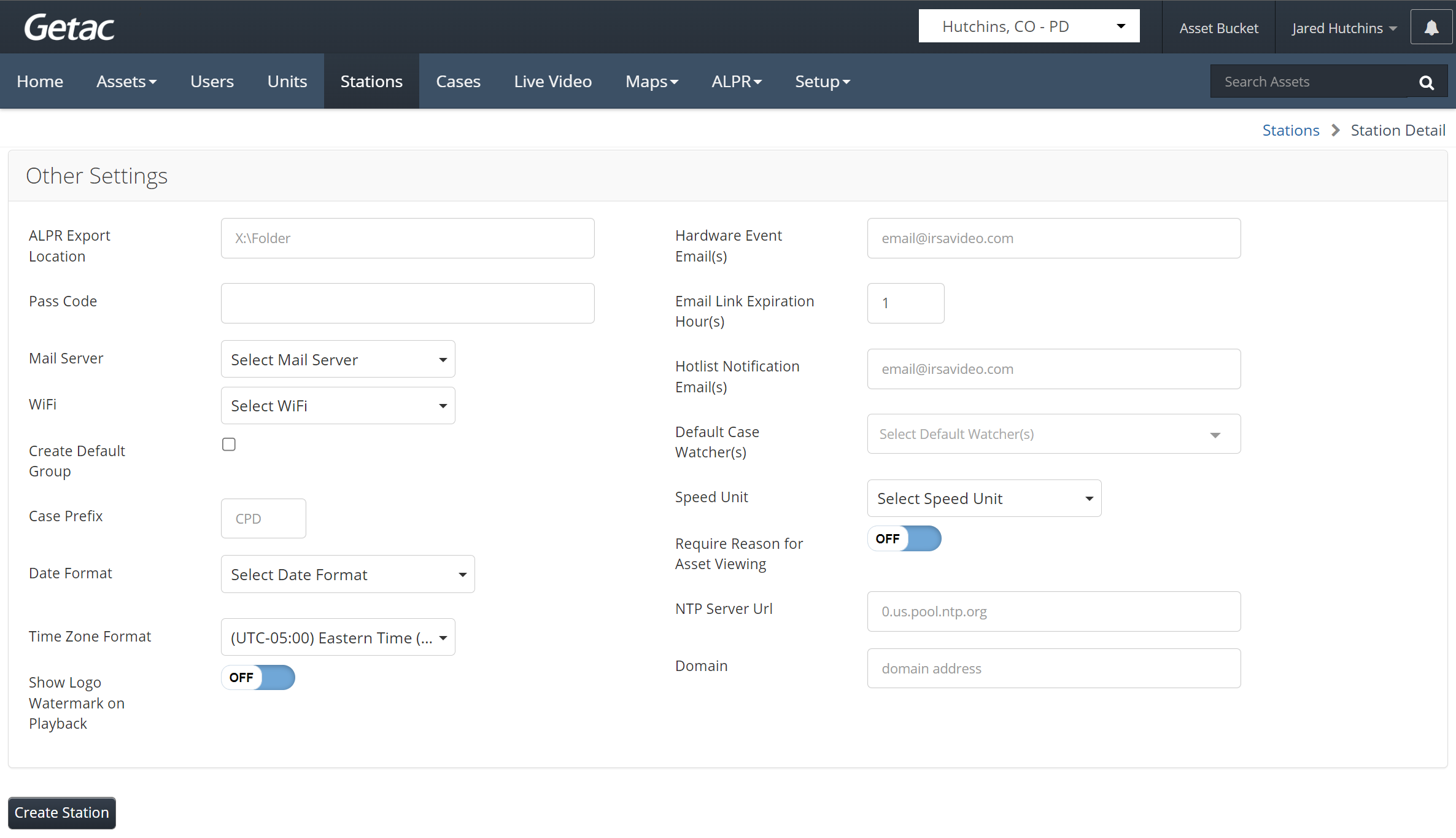
- ALPR Export Location -
- Pass Code* - Used for registration.
- Mail Server* - Email server used by the Station.
- WiFi - Set Station Wi-Fi configuration.
- Create Default Group* - Automatically create a default User Group.
Info: It is strongly recommended that this box be checked for all newly created Stations.
- Case Prefix - Enter a 3 letter prefix.
- e.g. {prefix} -YYYY################.
- Date Format - Choose display format:
- MM/dd/yyyy hh:mm:ss tt
- MM/dd/yyyy HH:mm:ss
- yyyy/MM/dd hh:mm:ss tt
- yyyy/MM/dd HH:mm:ss
- dd/MM/yyyy hh:mm:ss tt
- dd/MM/yyyy HH:mm:ss
- Time Zone Format - Select appropriate time zone.
- Show Logo Watermark on Playback - Displays watermark.
- Hardware Event Email(s) - Email for hardware alerts.
Info: Multiple email addresses can be entered, separated by a comma.
- Email Link Expiration - Default expiration time.
- Hot List Notification Emails - DO NOT USE.
- Default Case Watcher(s) - Assign User Groups.
Info: Groups must be created before this field can be populated.
- Speed Unit - Select format:
- KPH
- MPH
- Require Reason for Viewing - Forces users to enter a reason.
- NTP Server URL - Custom NTP server.
- Domain - Used for OpenID/AzureAD mapping.
See the image below for an example:
Create Station
Once any/all changes have been made, click the Create Station button to finalize.


