


Overview
The Veritone Redact Integration enables the management and execution of redaction tasks within the Getac Evidence ecosystem. This integration relies on specific application permissions to grant access rights to asset action menu entries and related reports. It allows users to submit assets for redaction using the Veritone Redact application.
Prerequisites
- Access to the "3rd Party Integrations" permission setting in Setup > Tenant Management in Getac Evidence.
- A product URL and Key provided by the Veritone team.
- A proper connection must be established before enabling any Veritone support.
Step-by-Step Instructions
Configure Application Permissions
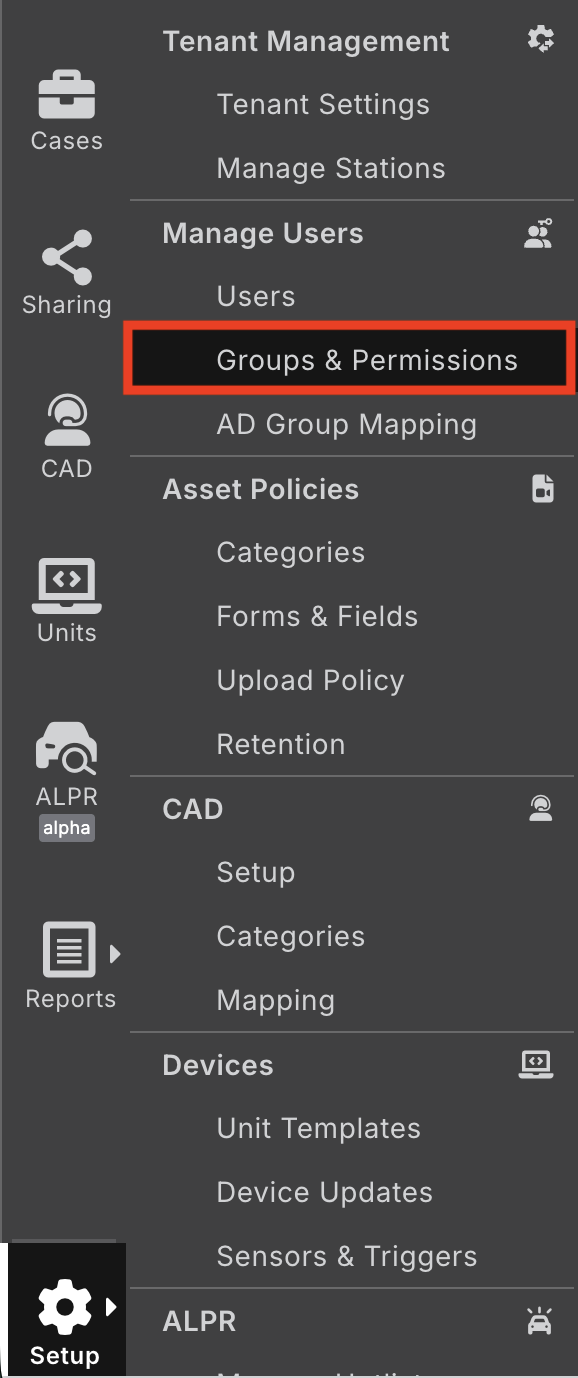
- Enable 3rd Party Integrations by first navigating to Setup > Groups & Permissions , then edit the admin group's Application Permissions.
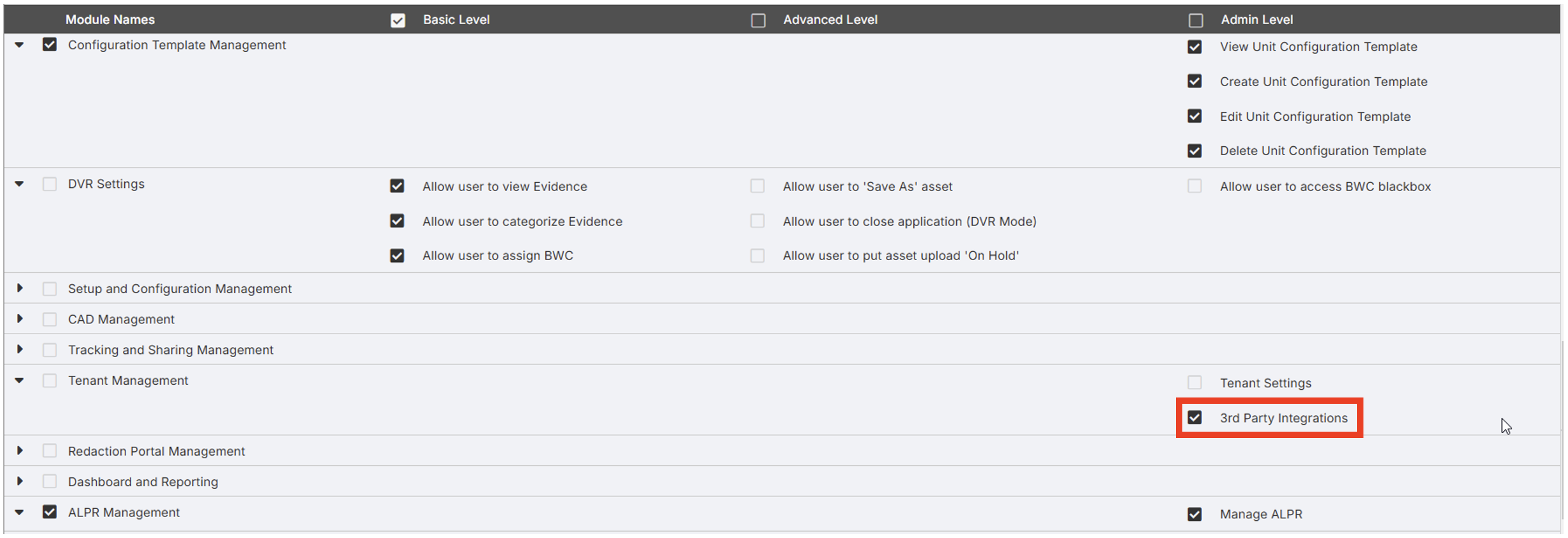
- Enable the "3rd Party Integrations" permission under the Tenant Management Module (see image below).
Configure Veritone Integration
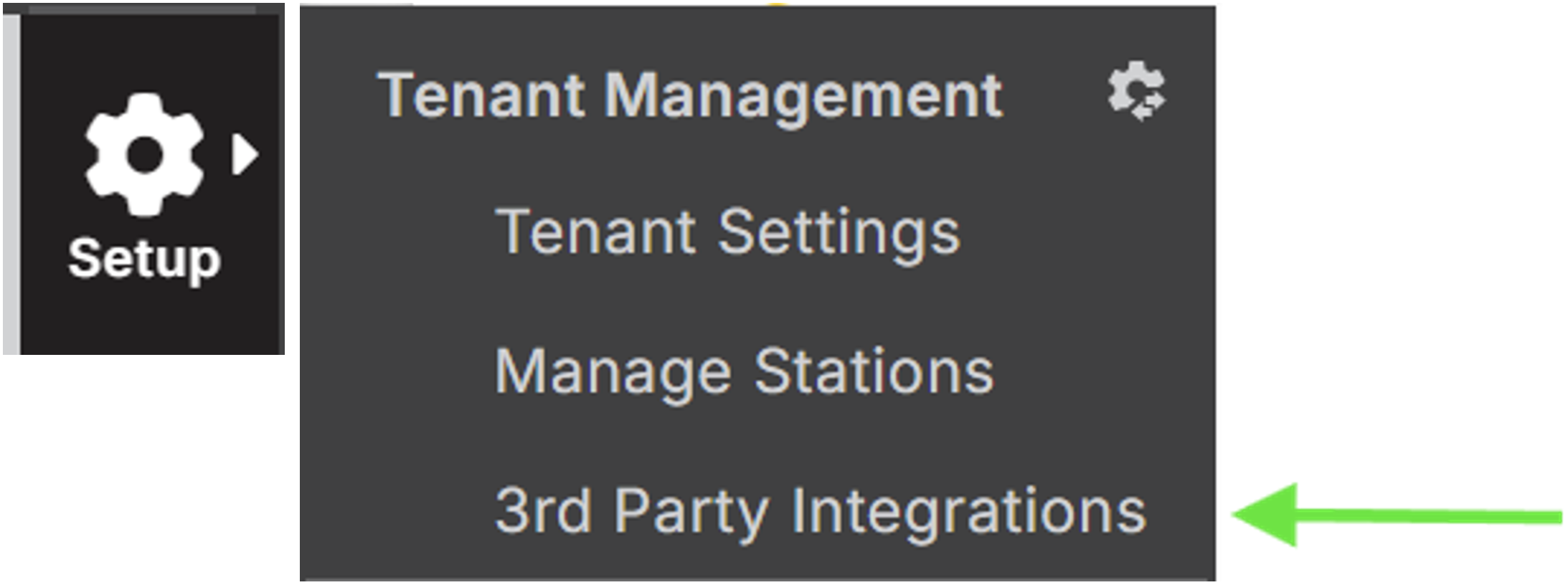
- Navigate to 3rd Party Integrations in Setup > 3rd Party Integrations (See image below).
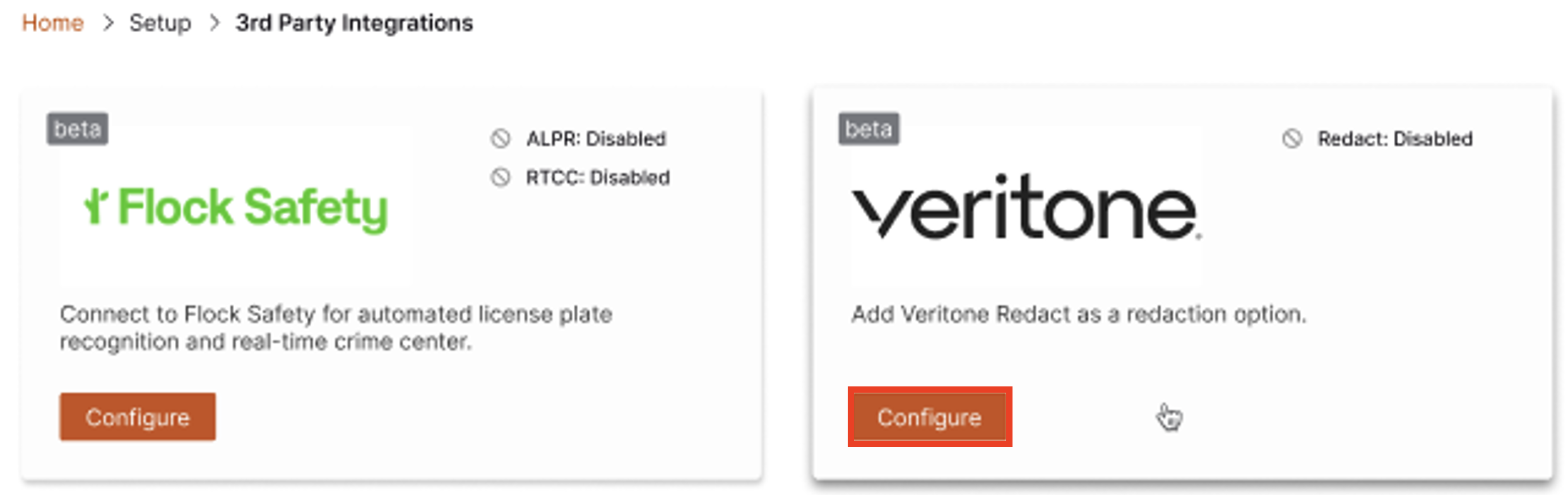
- Access the Veritone configuration settings via the Veritone Card (shown below). Select the Configure button to open the Veritone configuration page.
- Enable Data Transmission to access the input fields.
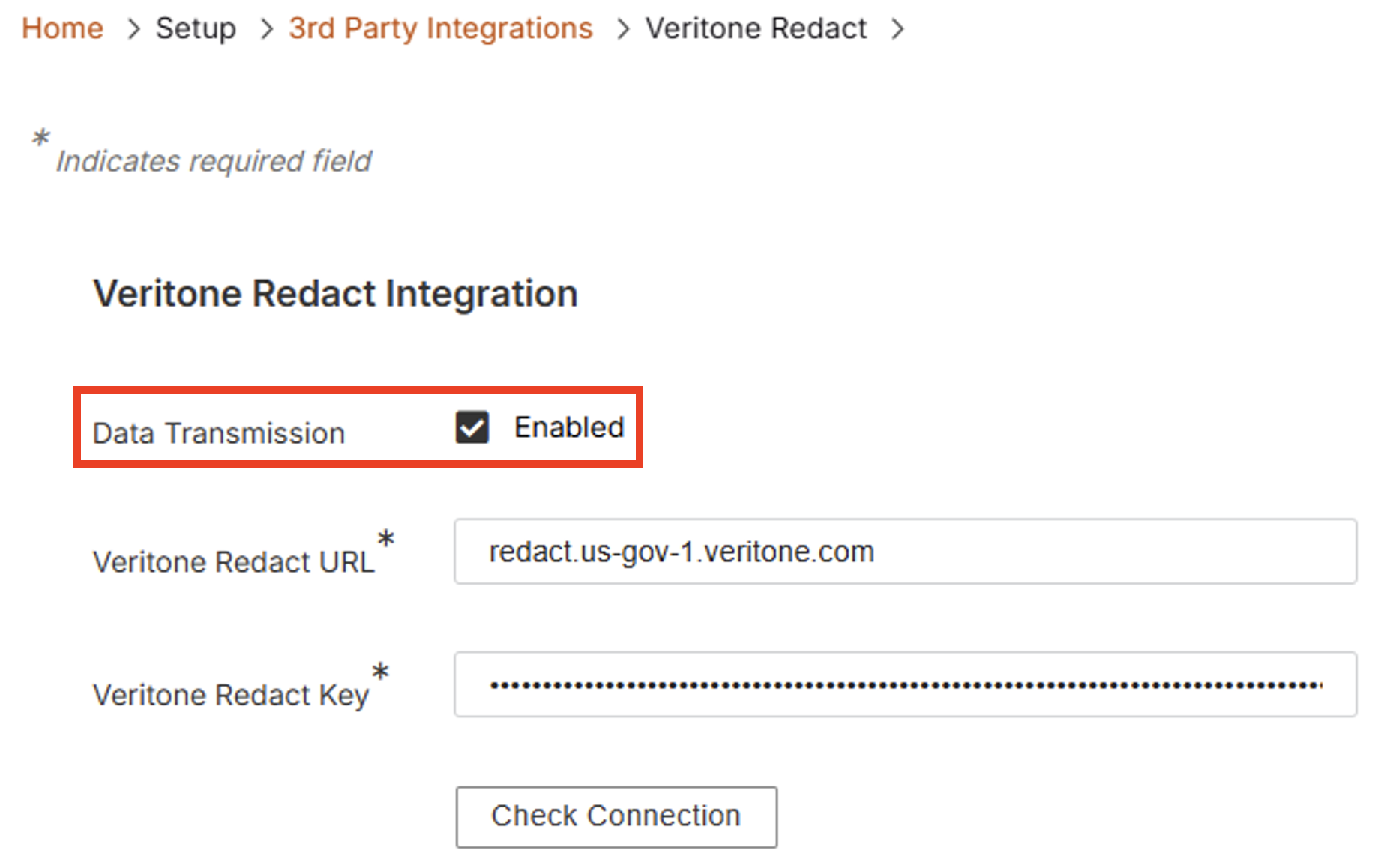
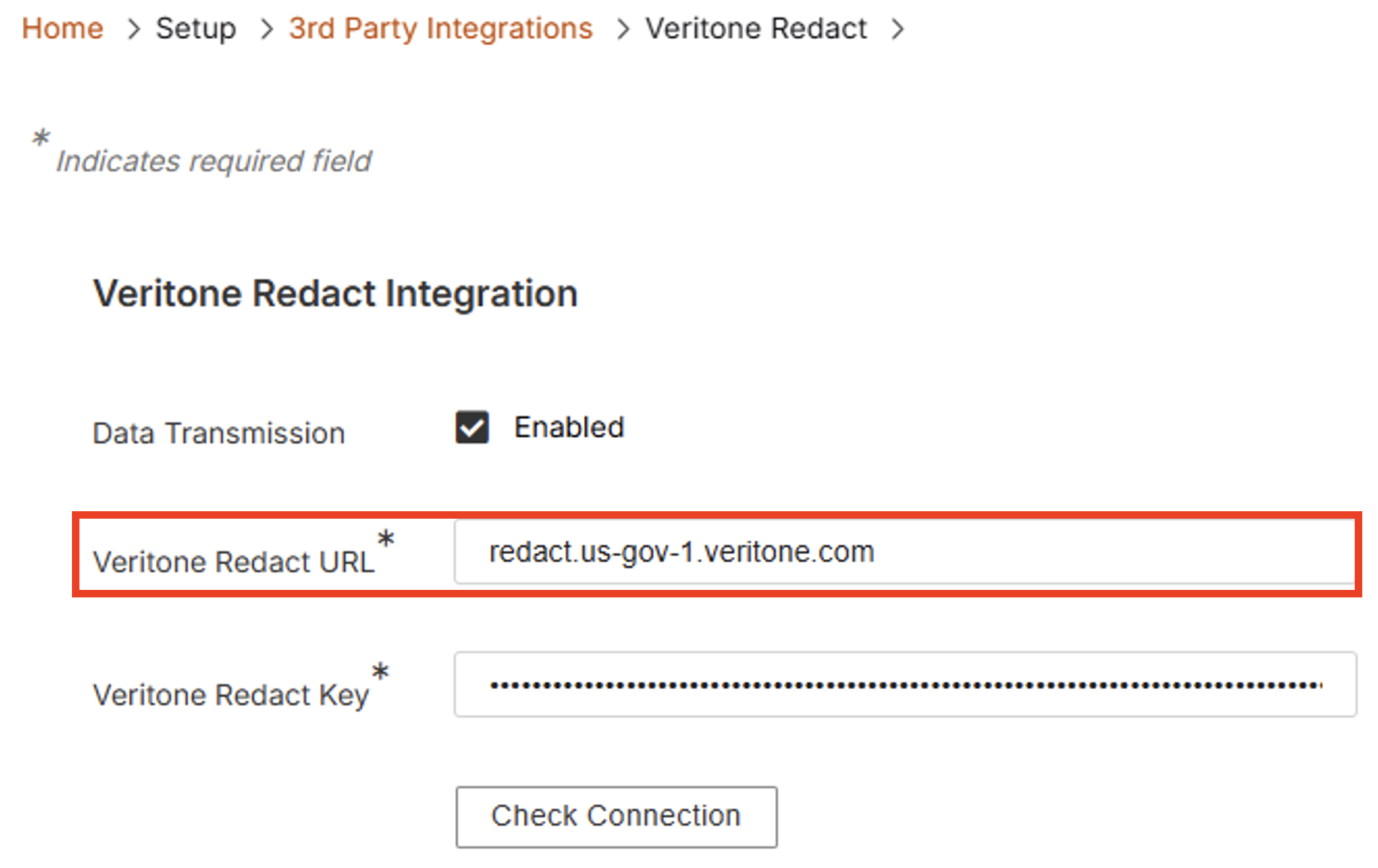
- Enter the Veritone Redact URL into the designated field.
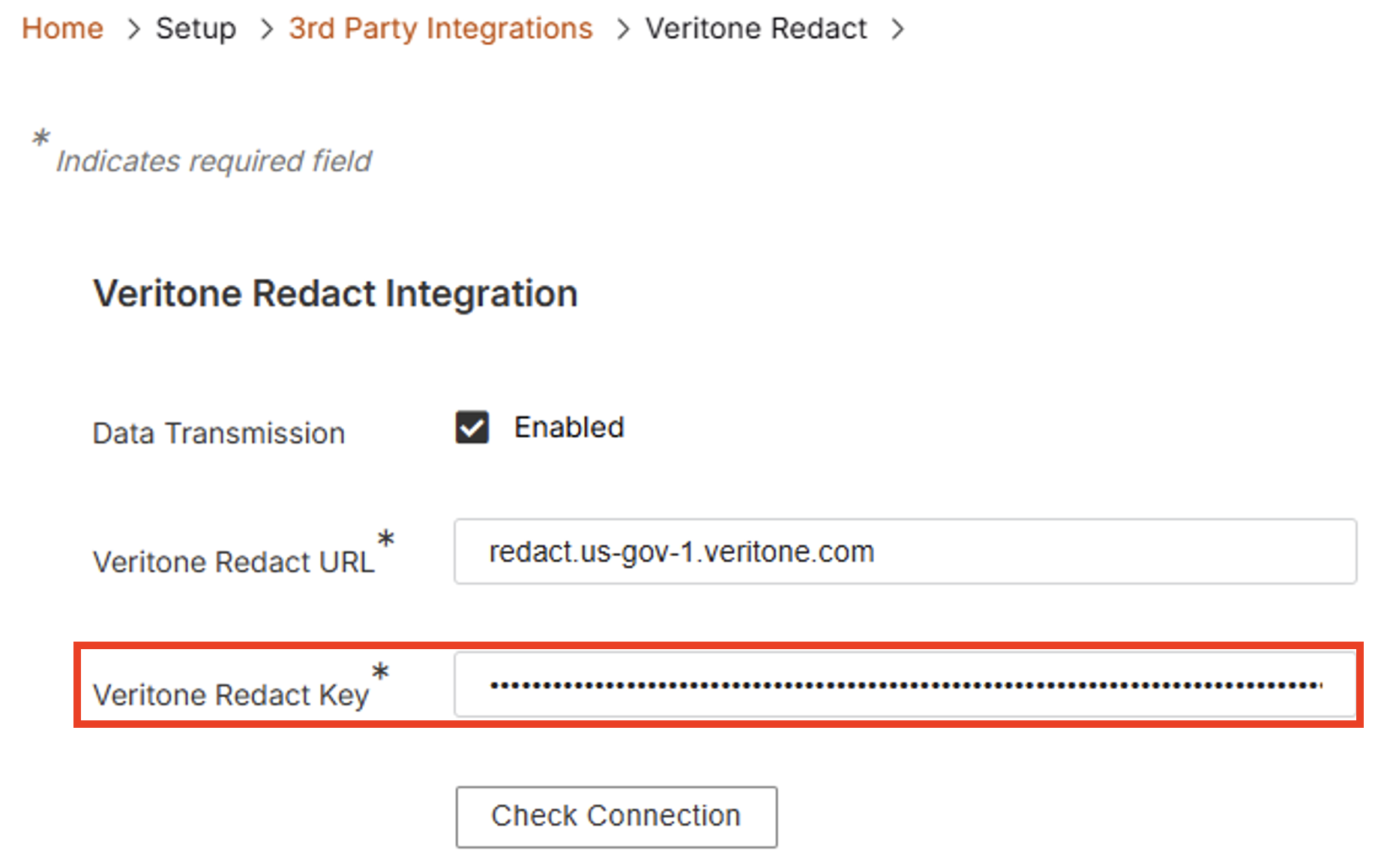
- Enter the Veritone Redact Key into the designated field.
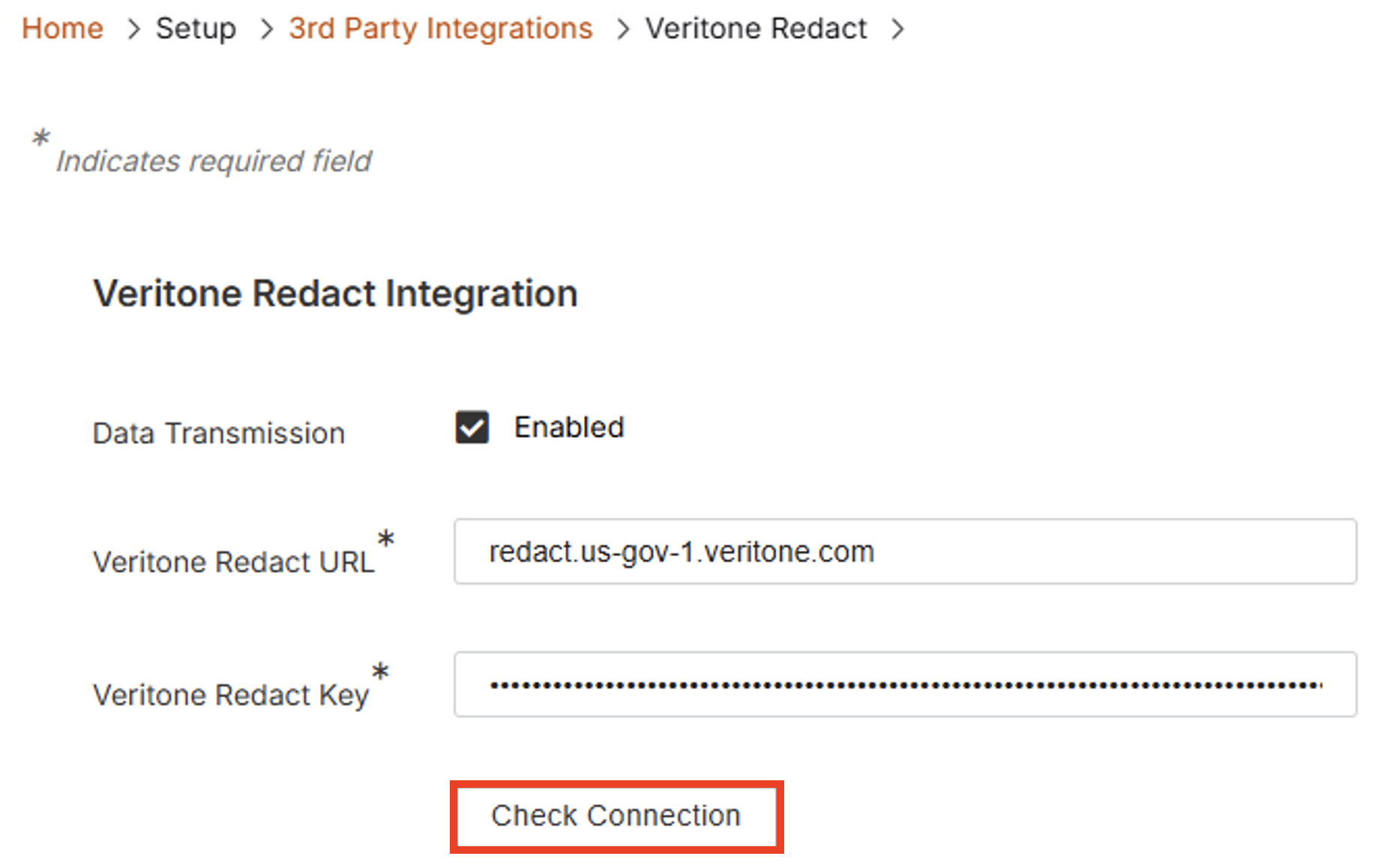
- Click the Check Connection button to confirm communication with Veritone services.
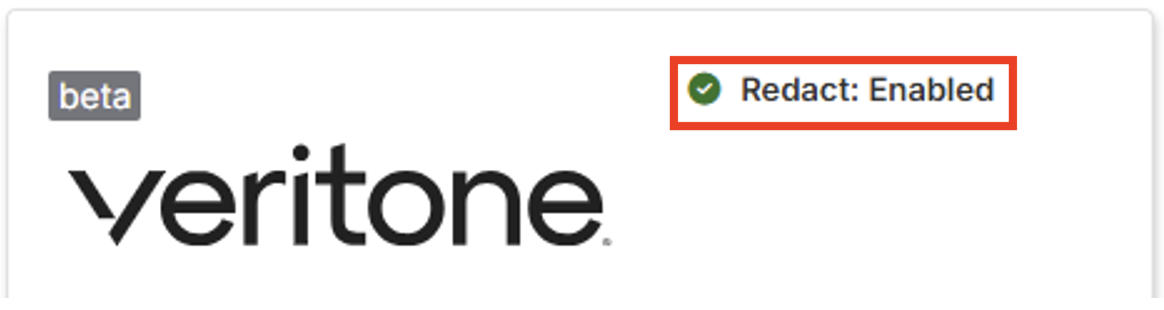
- With Data Transmission enabled, and saving the settings, the Veritone card will update the connector name and status on the Veritone Card (see image below).
Configure User Permissions
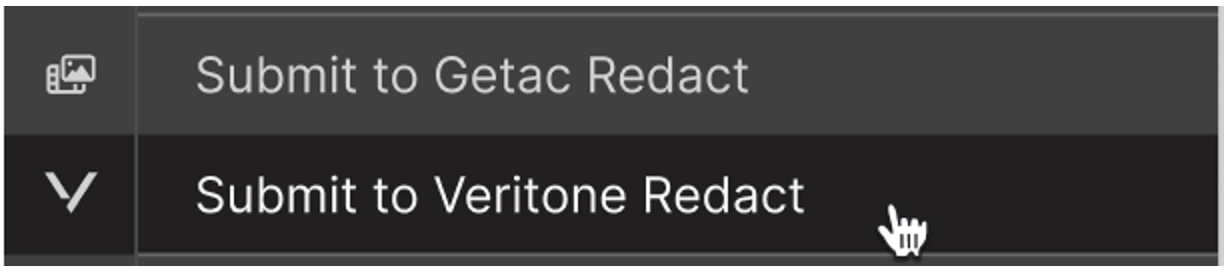
- After the Veritone integration has been configured and verified, to expose access to Veritone Redact, a user group must have rights to the “Allow access to Redact” permission under Setup > Groups & Permissions in the Redaction Portal Management module (see image below).

Selecting this permission will allow access to both the Veritone Redact and the Getac Redact application (if exposed) side-by-side. A project can be sent to either/both applications for redaction without affecting another redaction project on the alternate application. The available Redactions menu entries will become visible.
Configure Dashboard and Reporting Settings
All Veritone Redact requests are logged in a dedicated Report. The Report is not accessible by default with access to Veritone Redact and must be enabled via a dedicated EVM application permission.
- Select the “Integration Reports” permission under Setup > Groups & Permissions in the Dashboard and Reporting Module (see image below).

- Once enabled, the related Report menu entry will become visible (see image below).
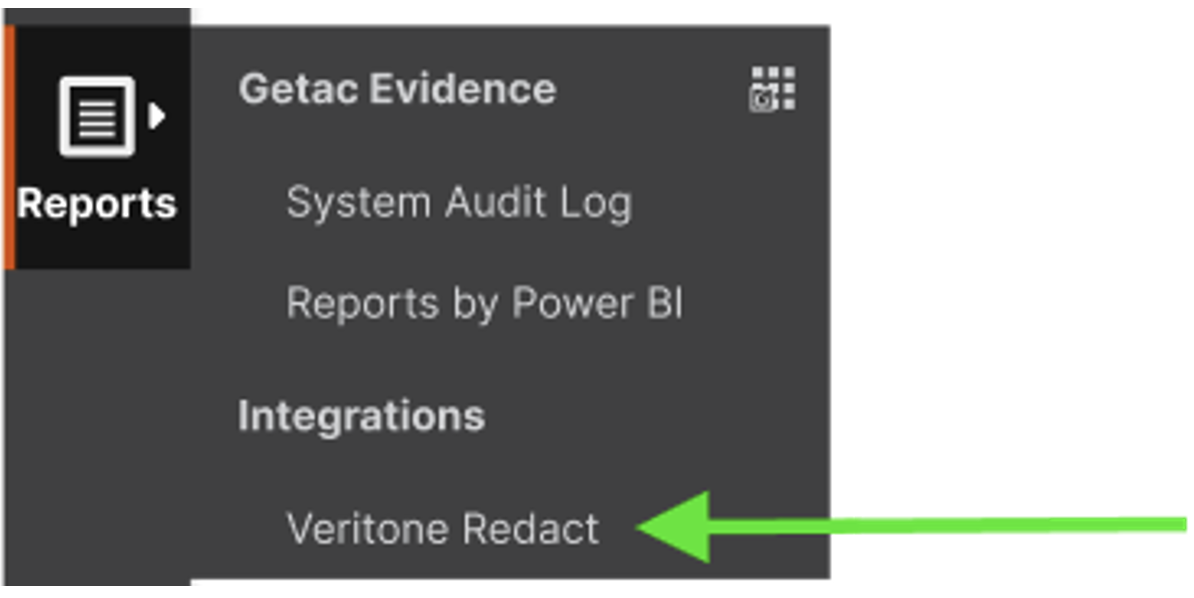
- Anytime an asset is submitted to Veritone Redact, a detailed record of the end-to-end process of the file from EVM to Veritone Redact and back to EVM is recorded in a dedicated report (see image below).

- Below is a detailed description of the statuses used in the Veritone Redact report:
| Status Label | Description |
| Requested | Asset submitted to Veritone Redact |
| Completed | Asset redaction completed in Veritone Redact |
| Downloading | Getac Evidence downloading the redacted asset from Veritone Redact |
| Uploading | Uploading the redacted asset to Getac Evidence |
| Done | Redacted asset is available in Getac Evidence |
| Failed | Process failed at any step (Getac Evidence or Veritone Redact) |
Expected Outcome
After completing these steps, the "Submit to Veritone Redact" asset menu entry will be visible, and users with the appropriate permissions will have access to Veritone Redact functionality. A successful connection to Veritone services will be confirmed with a success message and a current date/time stamp. The related Report menu entry for integration reports will also become visible.
Notes/Important Information
- Selecting the 3rd Party Applications permission will allow members associated with that user group to gain access to all integration partners listed in the 3rd Party Integration page (currently Flock Safety and Veritone).
- The Submit Assets for Analysis setting in Evidence Management will override the Redaction Portal Management setting for Getac Redact. This is a known gap that will be addressed in future releases.
- There is no distinct access permission for the roles of Analyst and Reviewer when using the Veritone system. If allowed, the user has access to all Veritone functionality.
- Selecting Getac Redact Analyst or Getac Redact Reviewer will only enforce those roles for Getac Redact. These can be left unchecked if Veritone is the only available redaction tool.

