


Overview
This guide explains how to configure the EVM4 Flock Safety Integration to allow NF-42-N cameras and InCar DVR systems to transmit ALPR captures to Flock services.
The integration relies on application permissions to control access to ALPR configuration interfaces and tenant-level integration settings. This guide also explains how to configure InCar Unit Templates and validate successful ALPR communication with Flock services.
Prerequisites
- Access to the "3rd Party Integrations" permission.
- Access to "View/Create/Edit/Delete Templates" permissions.
- The Flock Environment URL, Client ID, Client Secret, Grant Type, and Audience must be obtained from the Flock system.
Step-by-Step Instructions
Configure Application Permissions
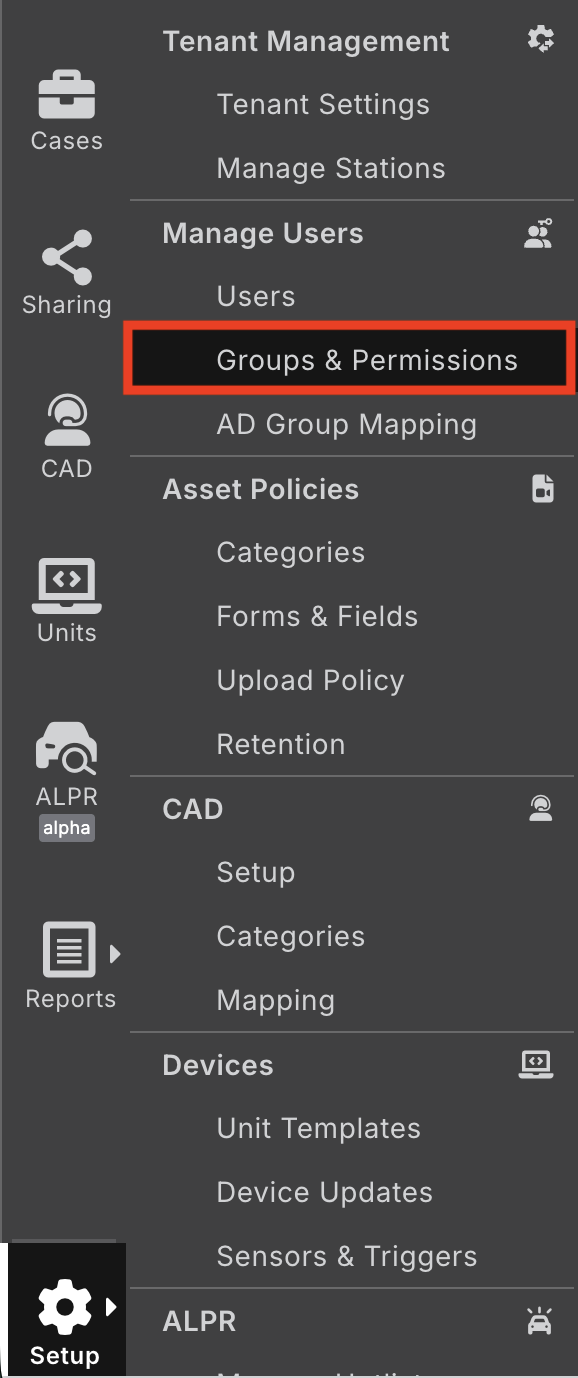
- Enable 3rd Party Integrations by first navigating to Setup > Groups & Permissions , then edit the admin group's Application Permissions.
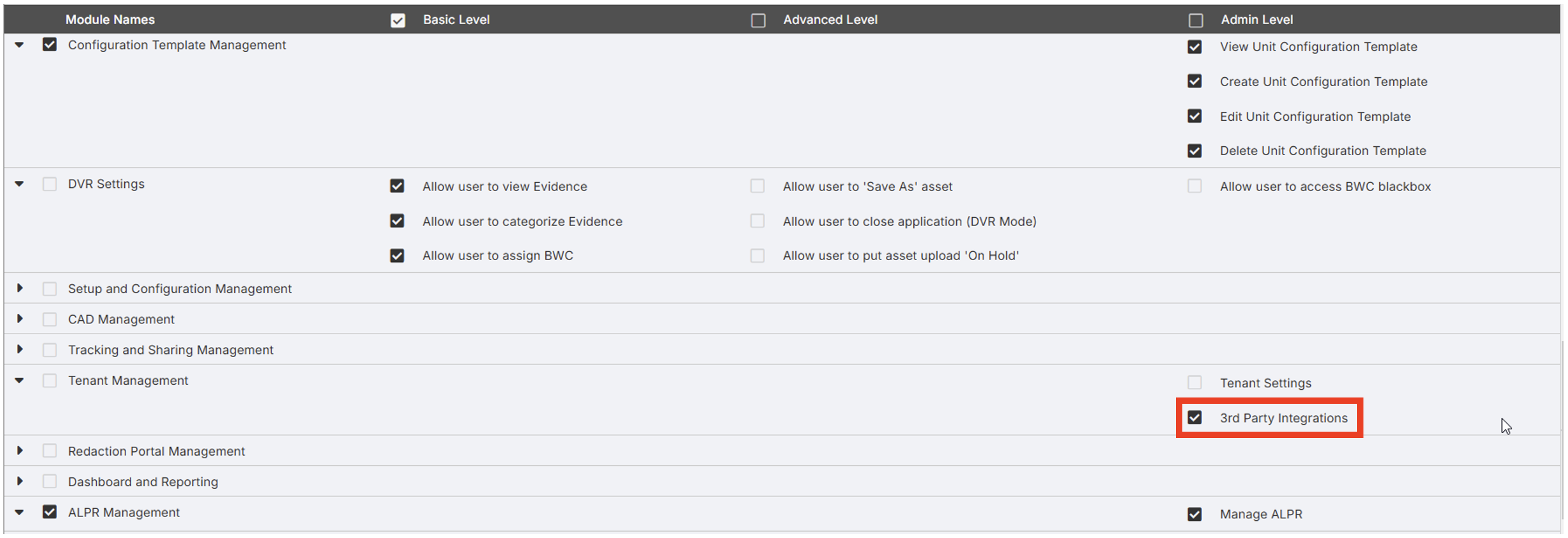
- Enable the "3rd Party Integrations" permission under the Tenant Management Module (see image below).
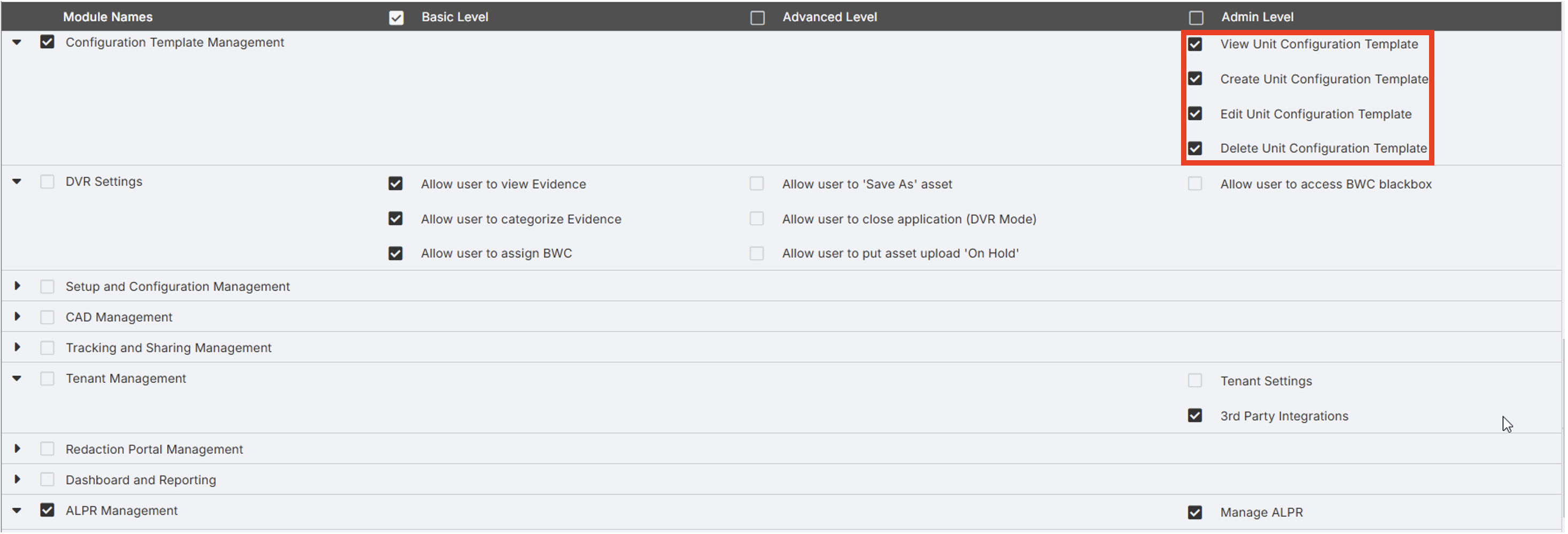
- Enable the "View/Create/Edit/Delete Templates" permission in the Configuration Template Management module for the relevant user group and save.
Configure the Flock Integration
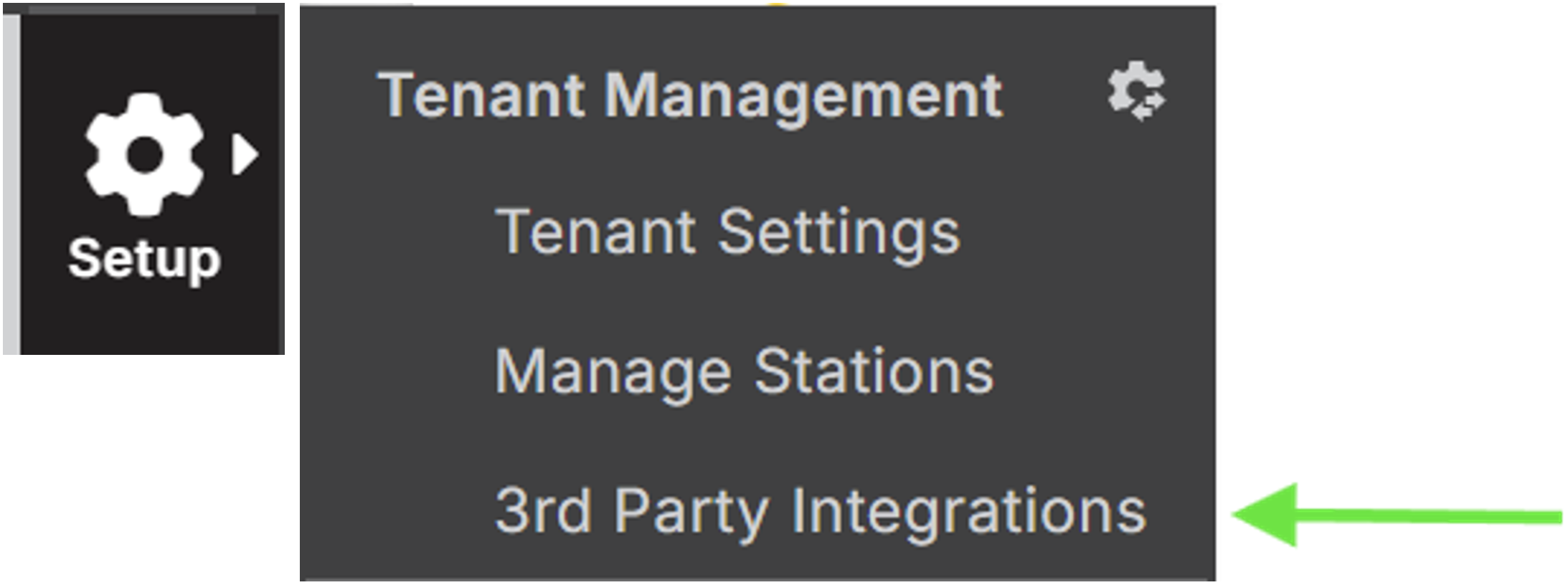
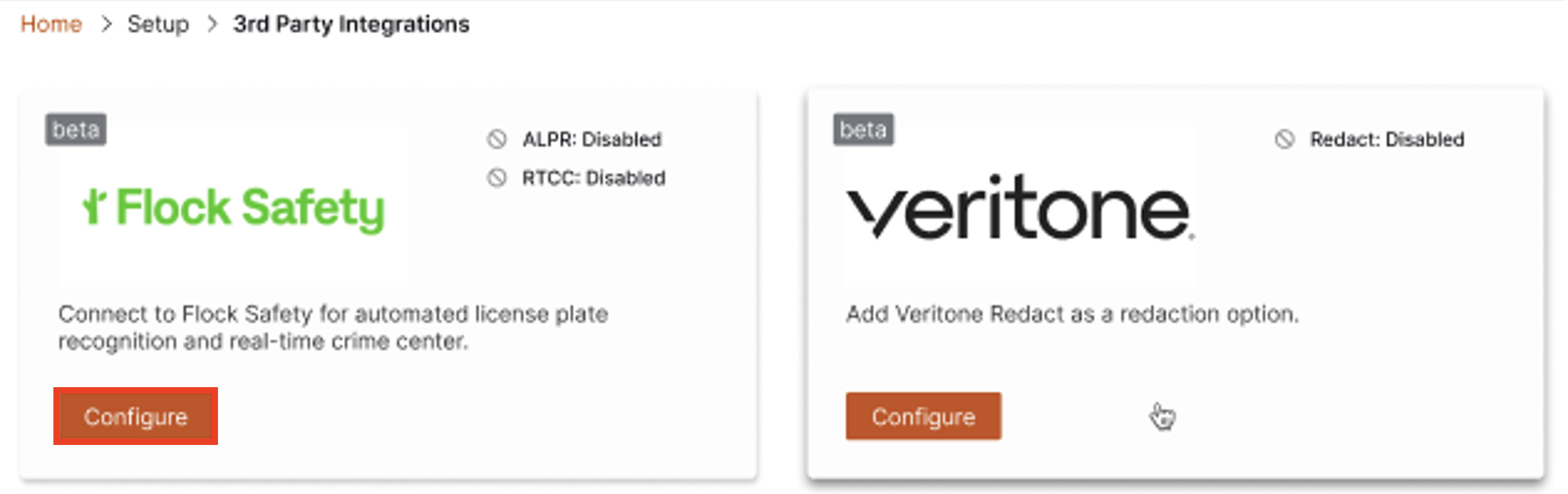
- Navigate to 3rd Party Integrations in Setup > 3rd Party Integrations (See image below).
- Access the Flock configuration settings via the Flock Safety Card (shown below). Select the Configure button to open the Flock configuration page.
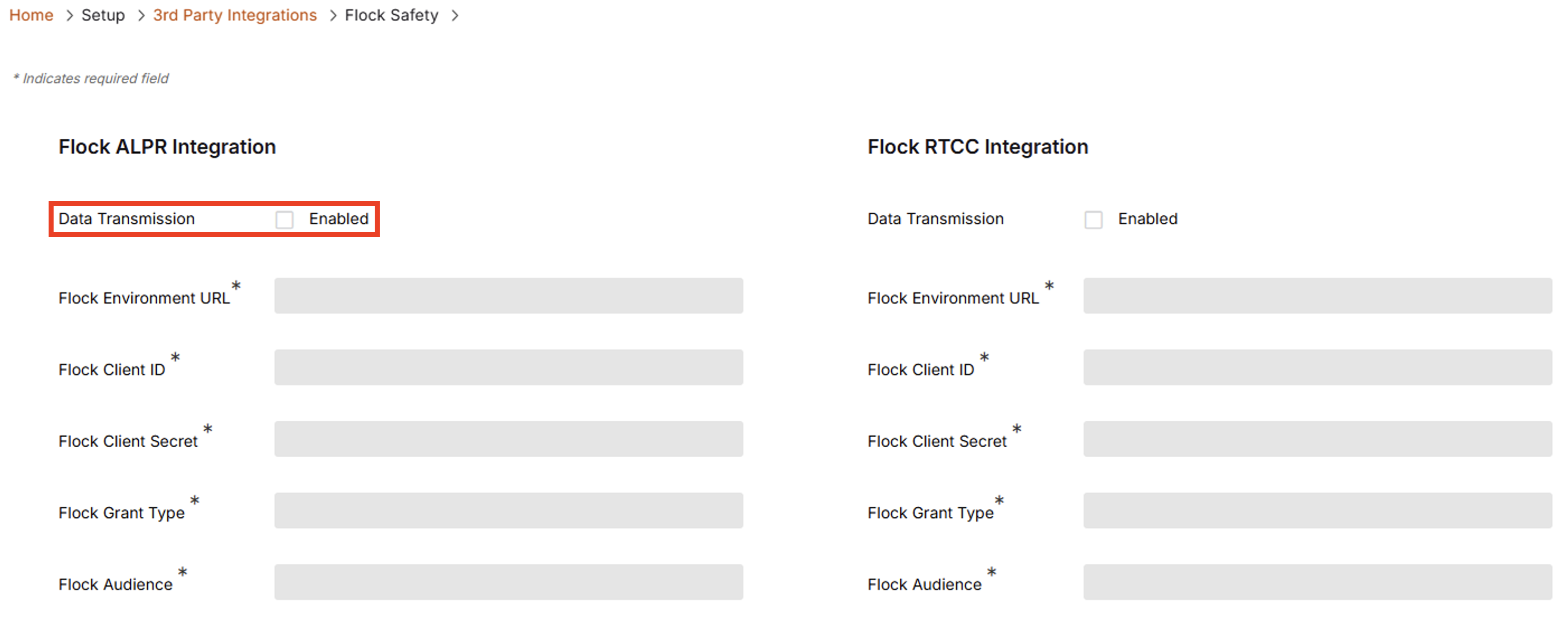
- Enable Data Transmission for ALPR by checking the Data Transmission checkbox.
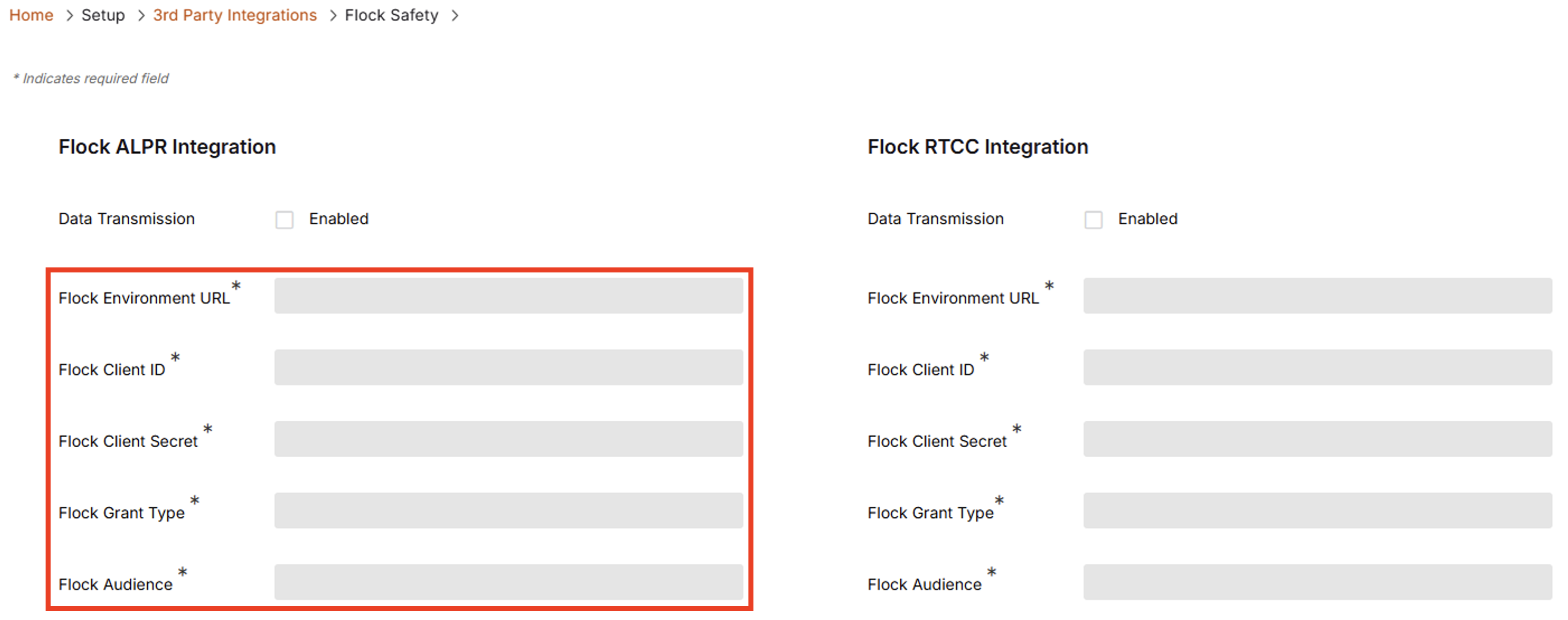
- Enter the Flock Environment URL, Client ID, Client Secret, Grant Type, and Audience into the respective fields.
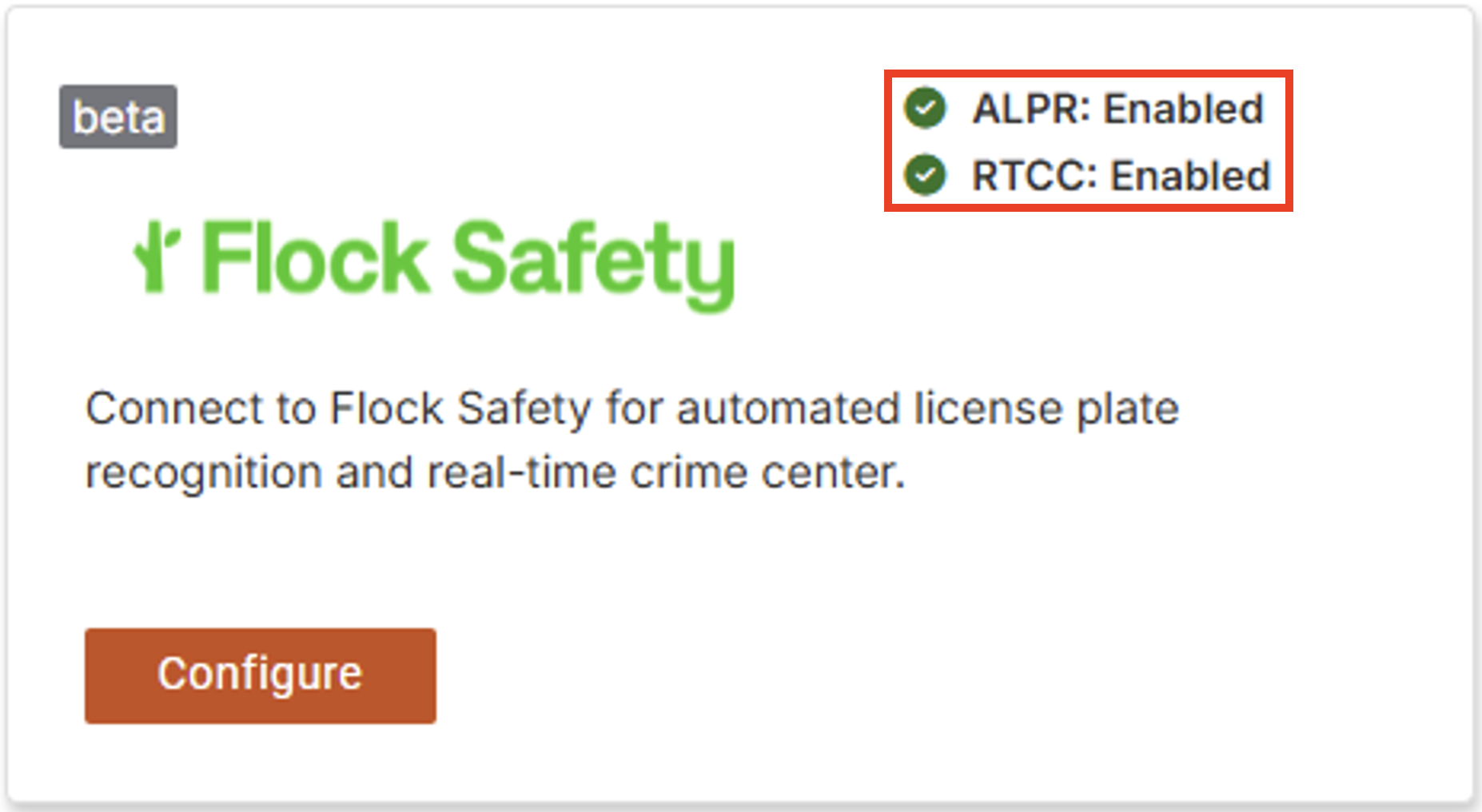
- Save the configuration. Saving the configuration with the "Enabled" check mark selected will update the status that appears on the Flock integration card.
Info:
Each device configured to interface with Flock services will need to come online and sync with Getac services before changes to the Flock Integration Configuration will take effect on the device.
Info:
RTCC fields have been added in preparation for integration in a future release.
Configure the InCar Unit Template
- In Getac Evidence, navigate to Setup > Unit Templates > Your InCar Unit Template > Camera Setup Tab.
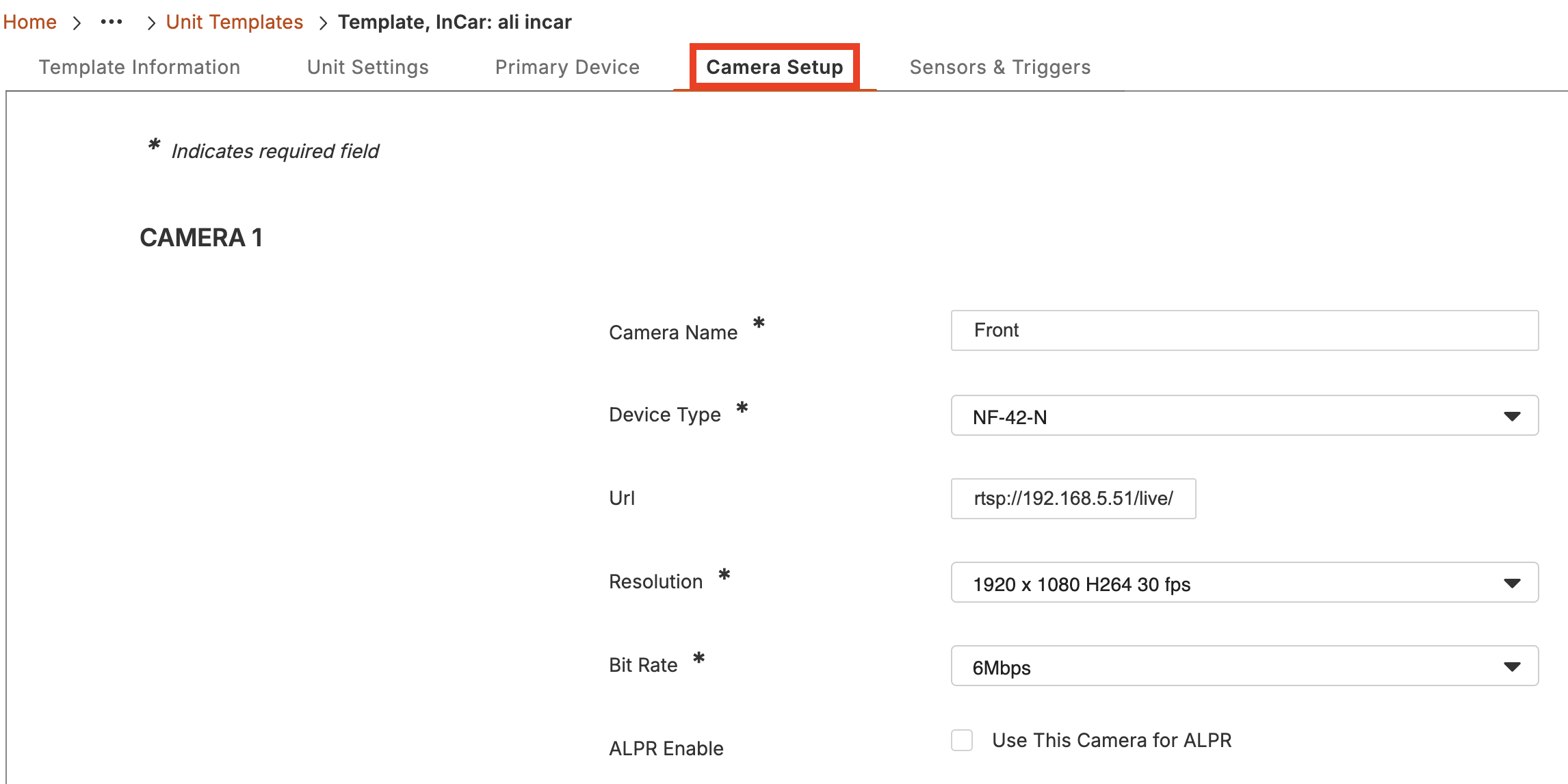
- Add an additional camera and set it to the NF-42-N Device Type if needed, or locate the existing NF-42-N Device settings when editing.
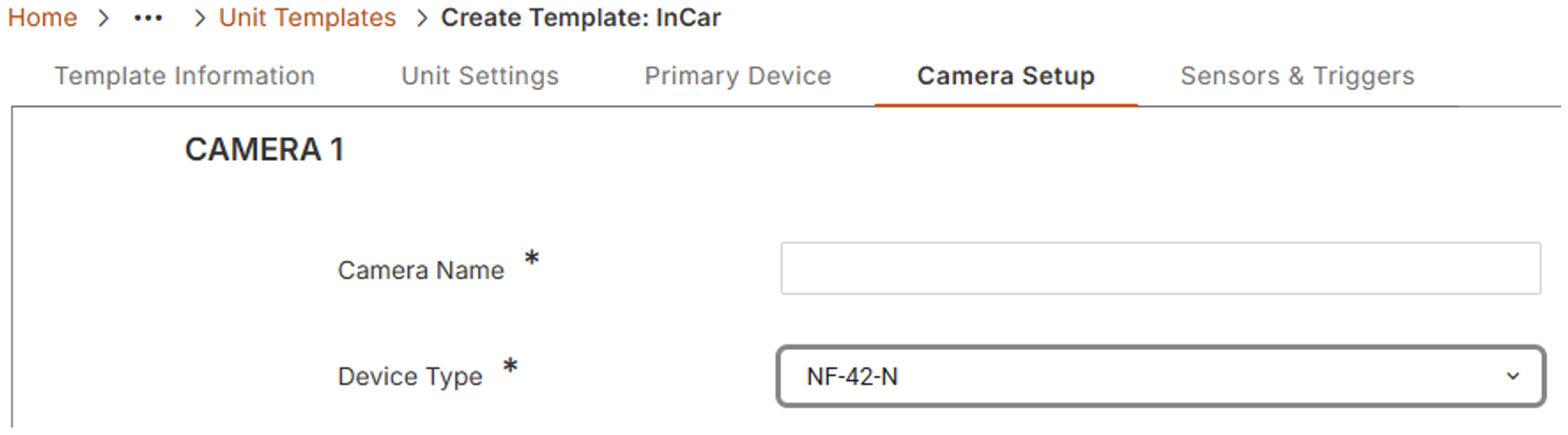
- Locate the ALPR Options dropdown control for the NF-42-N device type.
- Select the dropdown and modify the setting to the Send Captures to Flock option.

Warning:
The NF-42-N cannot be configured to send captures to both Getac ALPR and Flock Safety simultaneously. The selected configuration will automatically adjust InCar Application and camera parameters to support the chosen ALPR system.
- Save the InCar Unit Template.
Expected Outcome
After completing the configuration:
- The 3rd Party Integrations menu entry will become visible for the admin group.
- The Flock integration card status will update after the configuration is saved with Data Transmission enabled.
- Configured devices will sync with Getac services and apply the updated Flock integration settings.
- The NF-42-N camera will begin actively capturing license plates.
- The Flock service running on the DVR will begin transmitting ALPR captures to the Flock server.
- A license plate icon will appear in the top bar of the InCar application as shown in the image below:
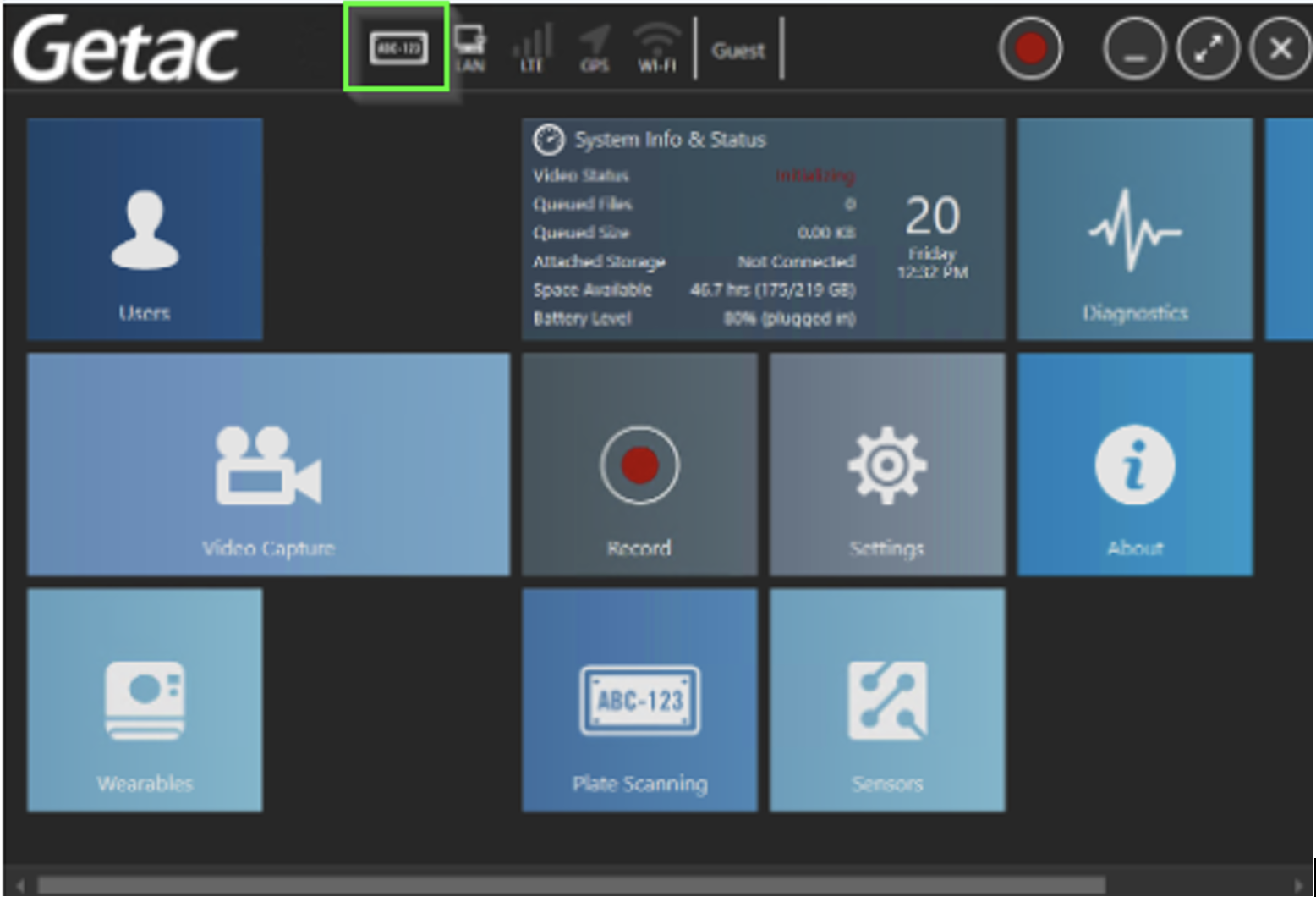
- The icon will initially appear grey until a connection to Flock services is established.
- The icon will turn white when ALPR communication is active and functioning correctly.
Notes/Important Information
- Selecting the "3rd Party Integrations" permission will allow members associated with that user group to gain access to all integration partner settings listed on the 3rd Party Integration page.
- Activating the "View/Create/Edit/Delete Templates" permission will give access to all unit templates and their associated settings, not just settings related to Flock. This should be done during initial setup by trained personnel.
- The "ALPR Management" permission is not required for Flock usage or configuration. "ALPR Management" provides access to Getac ALPR server configuration and usage.
- Verify that the InCar Application is actively running on the DVR, as the plate capture process will not function unless the application is running.

