


 620
620
Teams allows for users to collaborate in meaningful ways with their evidence. Supervisors and command staff get a simple way to understand what their team is doing, can quickly see trends, spot issues, and review activity without digging through complicated menus.
Teams makes it easier to:
- Control who can see which evidence or information
- Keep groups updated as your agency changes
- Give leaders clear insights into team activity
- Manage teams and their members in a straightforward way
Key Feature Highlights
| Views |
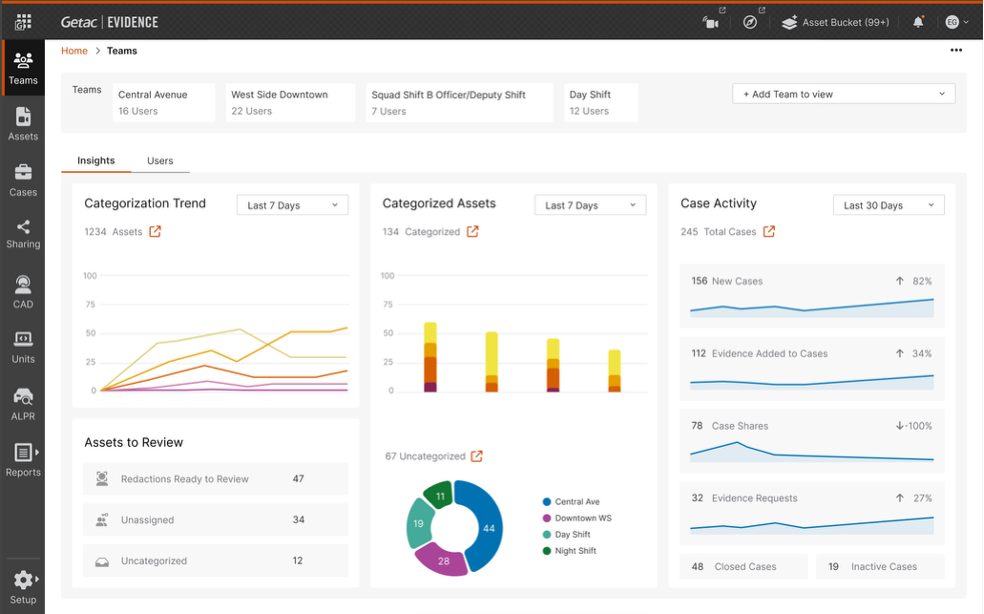
The Commander view shows selected Teams with a dropdown to configure the Teams in your view. Supervisors see the same Insights scoped to their team without the Teams selector.
|
| Insights | • Categorization Trend (with date range selection) • Categorized and Uncategorized Assets by Team • Unassigned asset count (based on the ‘Available’ status) • Uncategorized asset count (based on the ‘Available’ status) • Redaction projects ready for review • Case Activity Insights (6 new metrics showing counts and trends) • Selecting a Team card will drilldown insights to that Team • date-range filtering across charts • pop-out icons to drilldown |
| Team Management |
Hovering over a Team card shows actions to rename, delete, and change the Team lead
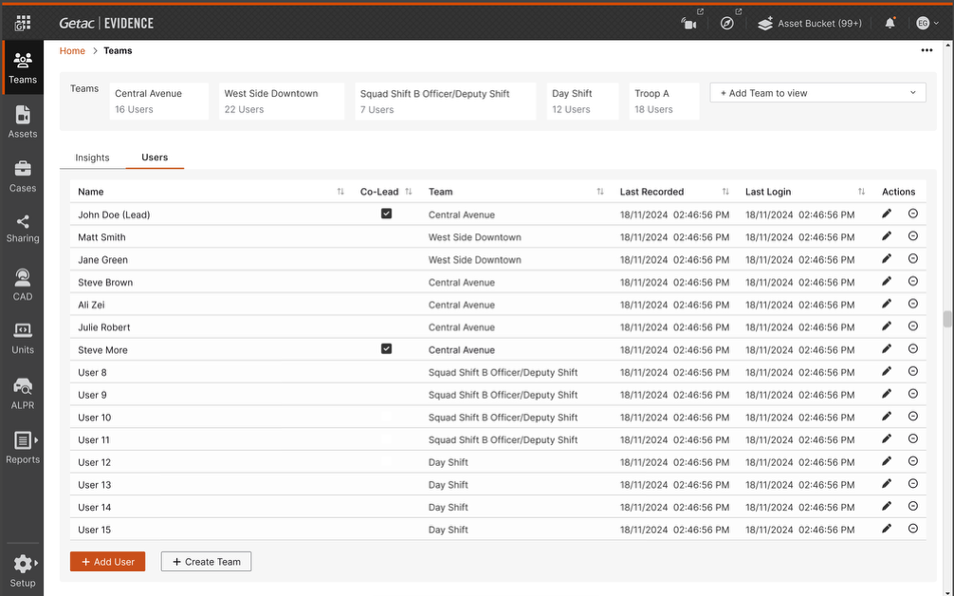
From the user’s tab, Team members can be added and edited inline to update their role, move them to a different Team, or remove them from a team.
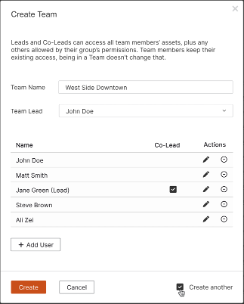
Create Teams from the action menu in the upper right corner or from the button on the Users tab and fill out the team details in the modal.
Team Leads are notified via email of Team creation, user additions and removals, and team lead changes. |
Permissions and Roles
| User Group Permissions | Team Role | Asset Visibility Rules | |
|---|---|---|---|
| Commander Access | Manage All Teams and Insights | User does not need to belong to a Team | Access to all assets to support system‑wide Insights |
| Supervisor Access | Manage My Team and Insights | Lead or Co‑lead of a Team Only the Team Lead can manage the Team |
Access to all Team members’ assets plus user group data permissions |
| Team Member Access | Optional read‑only “Manage My Team and Insights” permission | Team Member | Access is based solely on their user group data permissions |

